


Developer Perk: Deploy VS Code Web on Your Server and Code Anywhere, Anytime
Core Summary: For developers who frequently switch between multiple devices or lack local machine performance, deploying the VS Code Web version (
code-server) on a cloud server is an excellent productivity solution. It allows you to access a highly consistent development environment anywhere via a browser. However, note that a cloud IDE shifts the entire Node.js process to the server side, placing heavy demands on server memory and disk I/O, while exposing it to the public internet introduces security risks. This article breaks down the underlying architecture, provides a step-by-step guide to deployment, reverse proxy configuration, and security hardening, and helps you avoid resource exhaustion and unreliable hosting providers.
1. Paradigm Shift: Why Code in the Cloud?
In daily Linux administration and development workflows, many developers face the pain point of “environment inconsistency.” Switching between a work PC, a home desktop, or a travel laptop requires reconfiguring Node.js, Python, or Docker environments every time, which is time-consuming and highly error-prone.
The emergence of the VS Code Web version (open-source project code-server) completely changes this dynamic. It allows you to run a full VS Code instance on a remote server, enabling you to write, run, and debug code anywhere using just a web browser. More importantly, it breathes new life into underpowered but well-connected idle servers, preventing them from becoming mere “idle servers” gathering dust.
2. Hardware Selection & Network Latency: The Underlying Logic of a Smooth Experience
When coding in the cloud, the quality of your experience hinges on two fundamental physical parameters: Latency and Resource Overhead.
- The Latency Threshold: Code completion requires real-time responsiveness. If the round-trip time (RTT) between the server and your local machine exceeds 150ms, you will experience noticeable input lag. Therefore, prioritize data centers with premium Tier-1 routing (e.g., via Lumen AS3356 or Arelion AS1299) or select locations geographically close to your primary workflow to keep latency consistently under 100ms.
- Avoid Oversold Host Nodes: Under the
code-serverarchitecture, the browser acts merely as a lightweight Web UI, while all Language Server Protocol (LSP) processes, extensions, and the core Node.js runtime execute entirely on the remote server. If you purchase a heavily oversold VPS from a fly-by-night host, poor disk I/O will cause your development environment to crash unpredictably.
To ensure a smooth development experience, we have curated a highly cost-effective dev/test VPS with ample underlying system resources.
Limited Restock
| Core Specs | SSD Storage | Monthly Transfer | Special Price | Buy Now |
|---|---|---|---|---|
| 2-core / 2GB RAM / 1Gbps | 30 GB | 4000 GB | $16.98 /year | View Deal |
💡 vps1111 Pitfall Avoidance & Practical Guide:
- Route Analysis: The DC02 data center utilizes premium Tier-1 peering, maintaining stable latency around 80-100ms for Trans-Atlantic/US routes. With ample network throughput, it is highly suitable for use as a remote code editor.
- Potential Pitfalls: 2GB RAM is the absolute baseline for running
code-server. High-frequency I/O operations may be throttled by the host’s underlying cluster limits. We strongly recommend manually allocating at least 2GB of Swap space in Linux to prevent crashes. - Recommendation: ⭐⭐⭐⭐
For an in-depth performance comparison of this data center against similar-tier VPS options, refer to our previous technical teardown: February 2026: RackNerd vs BuyVM 512MB RAM VPS Hardcore Review!
3. Hardcore Deployment: Setting Up code-server & Security Hardening
Once your server is ready, we will dive into the actual deployment process. We strongly recommend using a clean installation of Ubuntu 20.04/22.04 or Debian 11/12.
1. One-Click Installation & Daemon Configuration
The official team provides a highly convenient installation script. Log into your server via SSH and execute the following command:
curl -fsSL https://code-server.dev/install.sh | sh
After installation, we need to configure it as a Daemon Process so the IDE continues running in the background even after you disconnect your SSH session:
sudo systemctl enable --now code-server@$USER
2. Exposing to the Public Internet: Why a Reverse Proxy is Mandatory?
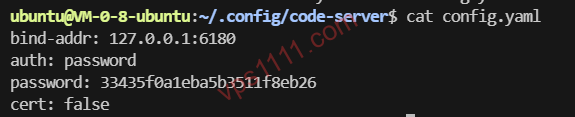
By default, code-server only listens on 127.0.0.1:6180. Many beginners, seeking convenience, directly modify the config file to listen on 0.0.0.0 and expose it to the public internet. This is extremely dangerous! More importantly, modern browsers (like Chrome) strictly enforce that without an HTTPS certificate, the Clipboard API and Service Workers will be disabled. This means you will be unable to use keyboard shortcuts to copy and paste code within the cloud IDE.
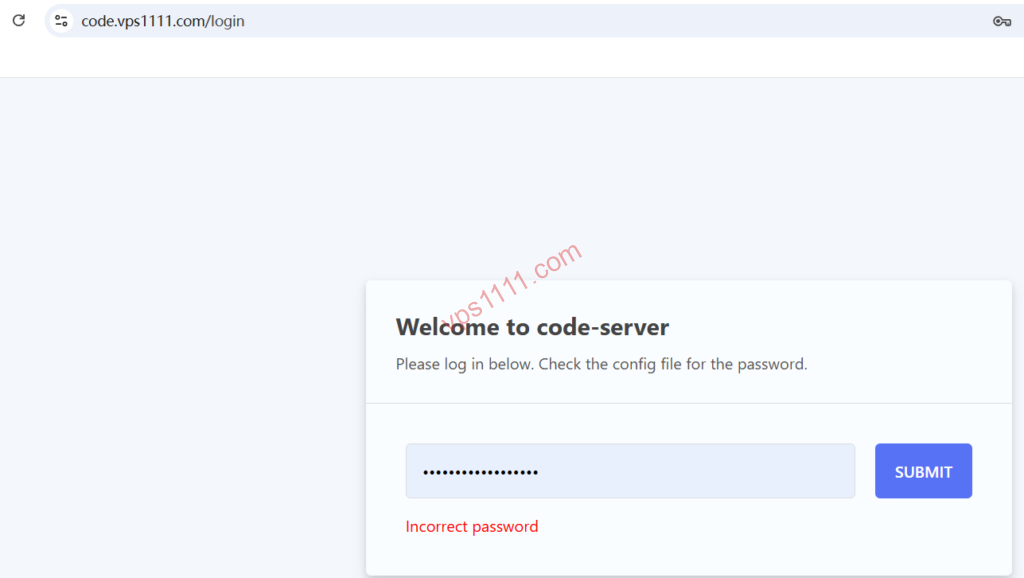
The correct approach is to install and configure Nginx as a Reverse Proxy (if you prefer GUI-based management, we highly recommend reading our Nginx Proxy Manager (NPM) Complete Guide). For manual configuration, start by installing Nginx:
sudo apt update && sudo apt install nginx -y
Next, modify the Nginx configuration file (typically located at /etc/nginx/sites-available/default) and add the following core reverse proxy and WebSocket upgrade directives:
server {
    listen 80;
    server_name code.yourdomain.com;

    location / {
        proxy_pass http://127.0.0.1:6180/;
        proxy_set_header Host $host;
        proxy_set_header Upgrade $http_upgrade;
        proxy_set_header Connection upgrade;
        proxy_set_header Accept-Encoding gzip;
    }
}
Once configured, use certbot to issue a free Let’s Encrypt certificate. You will then have a secure, full-stack cloud IDE with HTTPS encryption and full keyboard shortcut support.
4. Architect’s Pitfall Guide: Hard Limits of Cloud Environments
While enjoying the convenience of coding anywhere, you must acknowledge its inherent limitations. We avoid blind hype; here are the objective constraints you need to know:
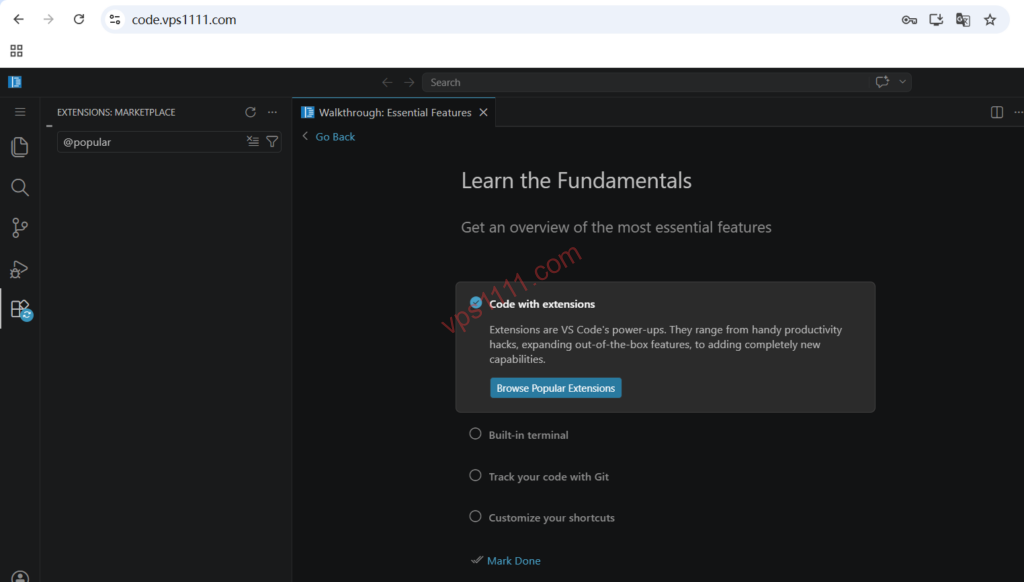
- Fragmented Extension Ecosystem: Due to Microsoft’s open-source licensing restrictions,
code-servercannot connect to the official VS Code Marketplace by default and instead uses the community-maintainedOpen VSX Registry. This means certain proprietary or Microsoft-exclusive extensions (like specific C++ debuggers or Live Share) may be unavailable or fail to function correctly. - High Risk of Out of Memory (OOM): Node.js processes are notoriously memory-intensive. If your VPS only has 1GB of RAM, running
npm installor bundling frontend Vue/React projects will highly likely trigger the Linux kernel’s OOM-Killer, forcibly terminating thecode-serverprocess.
5. Scenario-Based FAQ
1. Can a 1-core, 1GB low-end VPS run code-server?
It is highly impractical. A 1-core, 1GB configuration leaves only about 600MB of usable RAM after boot. Once code-server starts, available memory drops below 300MB. Opening a few large code files or running compilation commands will cause severe lag or process crashes. If your budget is tight, you must allocate at least 2GB of Swap space using the following commands (for detailed principles, see Low-Memory VPS Guide: Enabling Swap Partition):
sudo fallocate -l 2G /swapfile
sudo chmod 600 /swapfile
sudo mkswap /swapfile
sudo swapon /swapfile
2. Why can’t I use Ctrl+C / Ctrl+V to copy and paste code in the browser after deployment?
This is due to modern browsers’ security restrictions on the Clipboard API. Over unencrypted HTTP, browsers block web pages from reading or writing to the local clipboard. The solution is to bind a domain to your cloud IDE and configure HTTPS (SSL certificate) via an Nginx reverse proxy. Once accessed securely, clipboard functionality will be fully restored.
3. What if I can’t find my usual official extensions in the marketplace?
Due to protocol restrictions, code-server relies on the Open VSX marketplace. If you cannot find a required extension, visit the official Microsoft VS Code Marketplace website and manually download the .vsix file for that extension. Then, in the code-server extensions panel, click the menu in the top-right corner, select “Install from VSIX…”, and manually import it.