


🚀 Expert Intro: The First Thing to Do After Buying a VPS (Skip the Pitfalls)
Honestly, the most common question I get from beginners isn’t “how do I host a website?” It’s “Hey, I just grabbed a RackNerd deal, but I can’t connect. The web-based black terminal box is so laggy it’s driving me crazy!”
In 2026, VPS control panels come in all shapes and sizes, but their web-based VNC consoles are strictly meant for emergency recovery. If you plan to type hundreds of lines of code through VNC, you’re just wasting your time.
Having tested over 50 VPS providers and managed dozens of servers daily, I can tell you this: SSH (Secure Shell) is the only real tool you need to control your Linux server. It offers encrypted transmission, lightning-fast response times, and gives you true administrative power. In this guide, I’ll break down exactly how to securely and efficiently connect to your server via SSH on Windows, macOS, Android, and iOS.
🧠 Essential Knowledge: What is SSH and Why Is It Irreplaceable?
Before diving in, understanding the underlying logic will help you avoid 90% of common beginner mistakes.
SSH stands for Secure Shell. In the early days of the internet, administrators used Telnet for remote management. However, Telnet transmits data in plain text, meaning anyone sniffing the network could easily intercept your root password. SSH was created to solve this critical security flaw.
- Asymmetric Encryption: SSH uses a public/private key pair to establish a completely secure “tunnel” between you and the server. Even if packets are intercepted during transit, attackers will only see encrypted gibberish.
- Default Port 22: Every Linux server worldwide defaults to port 22 for SSH. Think of it as a secure door, where your password or cryptographic key is the only way to unlock it.
📊 2026 SSH Client Comparison: Top Tools Ranked
Choosing the right tool makes all the difference. With countless SSH clients on the market, I’ve curated the most reliable options to save you time and frustration, highlighting their key features and official download links.
| Tool Name | Platform | Key Features / Selling Points | Expert Rating |
|---|---|---|---|
| FinalShell | Win / Mac | Highly optimized for developers, features real-time system monitoring, CPU load graphs, and built-in SFTP file management on the left panel. | ⭐⭐⭐⭐⭐ (Top Pick for Web Hosting) |
| Xshell | Windows | Industry-standard, C++-based, extremely lightweight and stable, with powerful macro scripting for automation. | ⭐⭐⭐⭐⭐ (Essential for SysAdmins) |
| MobaXterm | Windows | All-in-one Swiss Army knife, supports X11 forwarding, RDP, and VNC. Highly feature-rich. | ⭐⭐⭐⭐ (Great for Power Users) |
| iTerm2 | macOS | The definitive terminal for macOS, offering highly customizable split panes, transparency, and advanced shortcut workflows. | ⭐⭐⭐⭐⭐ (Must-Have for Mac) |
| Termius | All Platforms (incl. Mobile) | Sleek UI with seamless cloud sync across devices, keeping your host credentials and keys perfectly synchronized. | ⭐⭐⭐⭐ (Best for Multi-Device Users) |
💻 Part 1: Connecting on Windows
For 80% of beginners, Windows is the primary workstation. I’ll focus on demonstrating FinalShell and Xshell here.
1. Beginner-Friendly: FinalShell Step-by-Step Guide
If you’re unsure how to transfer files via the Linux command line, FinalShell will save you. Built on Java, it uses slightly more RAM but delivers an unmatched user experience.
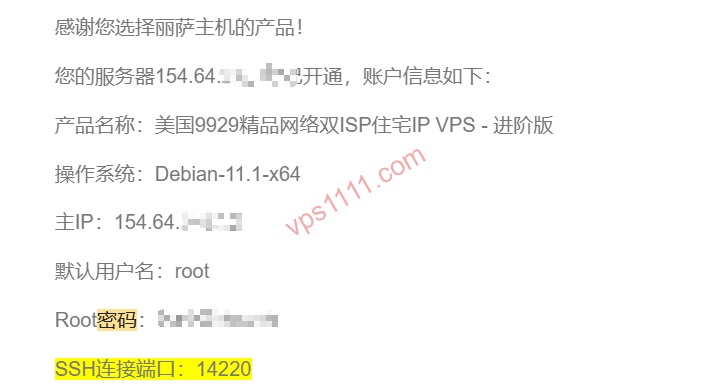
- Gather Credentials: After purchasing your VPS, check your email or provider dashboard for three key details:
IP Address,Port (usually 22), andDefault Password(username isroot). - Create Connection: Open FinalShell, click the “white folder” icon in the top-left, and select “SSH Connection (Linux)”.
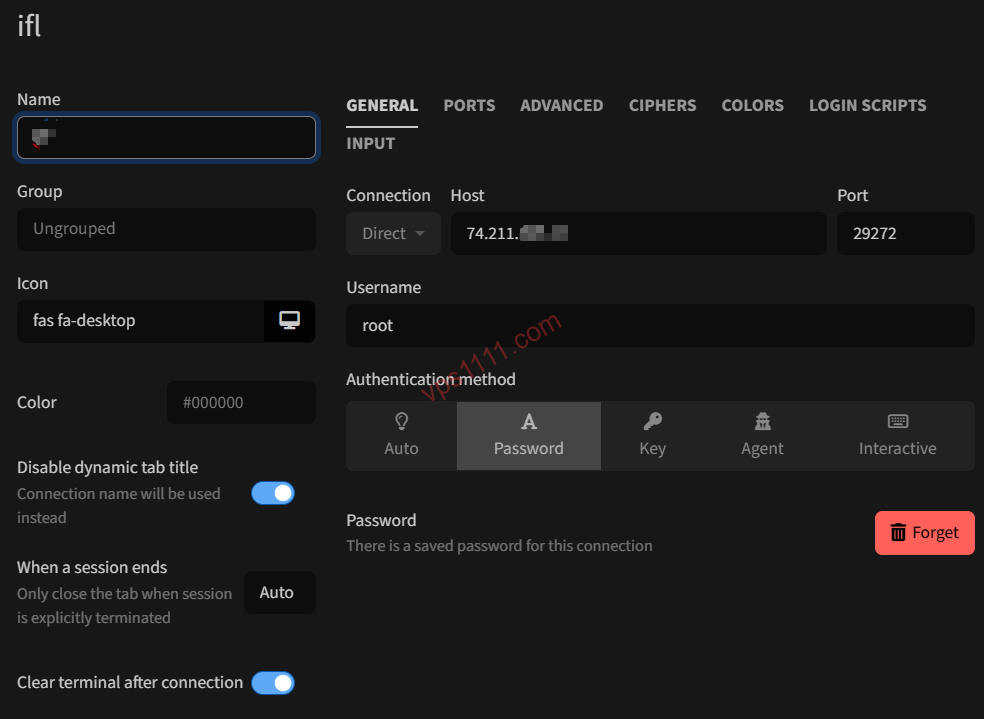
- Enter Parameters:
- Name: Enter anything descriptive, e.g., “RackNerd Los Angeles”.
- Host: Enter your VPS public IP.
- Port: Leave AS22 (or enter the custom port if provided).
- Authentication: Select “Password”.
- Username:
root. - Password: Enter your server password.
- Accept Host Key: On your first connection, a “Host Key Fingerprint” warning will appear. Don’t panic—this is a standard SSH security feature. Click “Accept and Save”.
- Connection Established: You’ll see a black terminal window, a file explorer tree on the left, and real-time CPU/network stats at the bottom. Congratulations, your server is ready!
2. Maximum Performance: Quick Xshell Guide
If you’re tired of bloated software and prefer a pure command-line experience, download the free “Xshell for Home/School” edition.
- Open Xshell, click “File” -> “New” in the top-left.
- In the “Connection” tab, enter a session name and the host IP.
- Navigate to “User Authentication” in the left menu, and enter
rootalong with your password. - Click “OK” to connect. Xshell offers excellent clipboard integration: text is copied automatically upon selection, and right-click pastes instantly.
🍎 Part 2: Connecting on macOS
Since macOS is Unix-based, it comes with native SSH support out of the box. You don’t even need third-party software.
1. Instant Connection via Native Terminal
- Press
Command + Spaceto open Spotlight, typeTerminal, and hit Enter. - In the terminal window, enter the following command format:
ssh root@your_server_ip(e.g.,ssh root@198.51.100.1) - If the port isn’t 22: Add the
-pflag:ssh -p port_number root@your_server_ip - On first connection, you’ll see
Are you sure you want to continue connecting (yes/no)?. Typeyesand press Enter. - Enter your password. Note: Linux terminals do not display characters (not even asterisks) while typing passwords. Just type it blindly and press Enter.
2. Pro Standard: iTerm2
When managing a dozen servers simultaneously, the native terminal falls short. I highly recommend iTerm2. It supports Command + D for vertical splits and Command + Shift + D for horizontal splits. You can monitor logs on Server A while deploying environments on Server B, drastically boosting your sysadmin efficiency.
📱 Part 3: Connecting on Mobile (iOS / Android)
Did your site suddenly throw a 502 error while you’re out shopping? No need to rush back to your computer. You can resolve the crisis directly from your phone.
- iOS Users: Termius
Download Termius from the App Store. While some advanced features are paid, the free SSH client is flawless. Its standout feature is a custom toolbar above the keyboard with Linux-specific shortcuts (likeTabcompletion,Ctrl, and arrow keys), making coding on a touchscreen painless. - Android Users: JuiceSSH
A legendary Android app known for its lightweight footprint and rock-solid stability. Its customizable virtual keyboard is incredibly intuitive—you can even map volume keys to adjust terminal font size. Simply create a new connection, enter your credentials, and tap to connect instantly.
🛡️ Advanced: Ditch Passwords, Embrace SSH Key Authentication
For any serious webmaster, password-only login isn’t enough. Automated botnets constantly scan port 22 worldwide, attempting brute-force attacks 24/7. For maximum security, I strongly recommend switching to SSH key authentication.
How it works: You generate a cryptographic key pair (private and public) on your local machine. You upload the “public key” to your server while keeping the “private key” securely stored locally. During connection, the server verifies your private key. If it matches, you log in instantly without a password. You can then completely disable password authentication, effectively locking out attackers.
Quick Setup Guide (using native Mac/Windows 10+ terminals):
- Generate the key pair locally: Run
ssh-keygen -t rsa -b 4096in your terminal and press Enter through all prompts. - This creates
id_rsa(your private key—never share it) andid_rsa.pub(your public key) in your local.sshdirectory. - Push the public key to your server: Run
ssh-copy-id root@your_server_ipand enter your password one last time. - Once verified, simply running
ssh root@your_server_ipwill grant you instant, password-free access!
❓ FAQ: Why Does Your SSH Keep Timing Out?
If you’ve followed the steps above but still can’t connect, receiving Connection timed out or Network error, immediately run through this troubleshooting checklist:
Q1: How to Distinguish Between Ping Failure and Port Blockage?
First, run ping your_ip in your local terminal. If ping succeeds but SSH fails, it’s likely a port issue or a firewall block. If ping fails entirely, the server may be down or the IP could be blocked by your ISP or regional firewall.
Q2: Can’t Connect to a New VPS? Is the IP Blocked?
When purchasing budget international VPS plans, you might occasionally get assigned a “dirty” IP that’s already blacklisted. How to test: Switch to mobile data or use a different network node to retry the connection. If it works, the original IP is likely blocked in your region. In this case, contact your provider to request an IP replacement.
Q3: Can’t Connect to Major Cloud Providers? Is the Firewall Blocking It?
Yes! Major cloud providers like AWS, Google Cloud, and Oracle Cloud enforce a default Security Group layer in their web consoles. You must navigate to your security group settings and manually add an inbound rule allowing TCP traffic on port 22. Otherwise, the cloud firewall will silently drop your connection requests.
🎁 Recommended for Beginners: Budget-Friendly Practice Servers
Theory alone won’t make you proficient. If you want to quickly master SSH commands and web hosting setups, I highly advise against starting with expensive enterprise plans. You need an affordable, resilient VPS for hands-on experimentation.
Here are my long-term monitored, high-value “starter servers” perfect for learning. If you break something, just reinstall the OS from the dashboard—zero stress:
Establishing an SSH connection is just the first step into the Linux ecosystem. Here, there are no mouse clicks to hold you back—only the pure efficiency of the command line. Practice regularly, run commands, and analyze logs. Soon enough, you’ll be the sysadmin everyone looks up to.