


Core Summary: In 2026, data privacy and security are paramount for every Linux Ops professional and cross-border e-commerce operator. Relying on third-party cloud storage not only means dealing with throttled speeds but also carries the constant risk of account suspension and data breaches. This hands-on guide demonstrates how to deploy a Nextcloud private cloud using Docker Compose container orchestration with a single command, completely eliminating tedious environment configuration. The tutorial covers baseline hardware requirements, least-privilege security configurations, and essential data mounting guidelines. Note: Nextcloud is resource-intensive; avoid attempting this on machines with severe overselling.
In 2026, if you still rely solely on third-party cloud drives, you are not only enduring artificial speed caps but also constantly worrying about the privacy of sensitive data. Frankly, I have been tracking this Docker-based private cloud deployment solution for a while. While your storage capacity is ultimately limited by your disk size, the setup wins on flexibility, absolute control, and perfectly utilizes those “grandfathered plan” VPS instances you might have sitting idle.
In the past, deploying a complete cloud storage system meant wrestling with underlying environments, configuring PHP, installing databases, and resolving dependency conflicts—one wrong move could crash the entire stack. Today, with Docker Compose container orchestration, you only need to write a single .yml configuration file. The system handles the rest automatically, leaving your environment clean and delivering rock solid stability.
📊 Recommended “Golden Specs” for Running a Private Cloud in 2026
To achieve instant load times and seamless large-file synchronization, select the appropriate VPS hardware and network routing based on your budget:
🚀 Architect’s Pick: Recommended VPS Hardware for Private Cloud Deployment & Storage
| Configuration Dimension | Tier-1 BGP Optimized | NTT AS2914 Flagship | Architect’s Perspective |
|---|---|---|---|
| CPU / Memory | 1-core / 1GB (Swap required) | 2-core / 2GB+ | Nextcloud’s PHP processes are highly memory-intensive |
| Disk Type | High-capacity HDD (with cache) | NVMe SSD | High-concurrency sync heavily relies on Storage I/O |
| Routing Characteristics | King of cost-effective bandwidth | Top-tier direct low-latency optimization | Cogent AS174 is exceptionally suited for high-bandwidth trans-Atlantic data transfers |
🛠️ Core Tool: Why Choose Modern Docker Compose?
With a background in computer science, I deeply understand the pain of manually maintaining production environments. Docker Compose elegantly resolves the following critical issues:
- Environment Isolation: Private cloud storage relies on complex databases (MariaDB) and caching layers (Redis). Through containerization, each component runs in an isolated namespace, completely eliminating the risk of host-level library conflicts.
- Stateless Migration: Containers can be destroyed and recreated at will. You only need to back up your configuration files and mounted data directories. On a new server utilizing a Cogent AS174 optimized route, a single command enables instant, one-click migration.
- Principle of Least Privilege: Inter-container networks are strictly isolated. The web service can operate without ever accessing the database’s root credentials, fundamentally blocking privilege escalation risks.
🚀 Practical Deployment: Full Security Setup Based on Nextcloud
While numerous cloud storage solutions exist on the market, we have selected Nextcloud as the core system due to its highly mature open-source ecosystem and comprehensive feature set.
1. Environment Preparation
It is highly recommended to operate on a clean Ubuntu 24.04 or Debian 12 installation, with Docker and Docker Compose pre-installed.
2. Write the Hardened Docker Compose File
Create a dedicated working directory using mkdir mycloud && cd mycloud, then create a docker-compose.yml file. Note: The configuration provided below has undergone strict production-grade security hardening for port mapping and environment variables. Copy it directly:
version: '3.8'

services:
  db:
    image: mariadb:10.11
    container_name: nextcloud_db
    command: --transaction-isolation=READ-COMMITTED --binlog-format=ROW --skip-innodb-read-only-compressed
    restart: always
    volumes:
      - ./db:/var/lib/mysql
    environment:
      - MYSQL_ROOT_PASSWORD=your_strong_root_password
      - MYSQL_PASSWORD=your_strong_user_password
      - MYSQL_DATABASE=nextcloud
      - MYSQL_USER=nextcloud
    env_file:
      - db.env
    healthcheck:
      test: ["CMD", "healthcheck.sh", "--connect", "--innodb_initialized"]
      timeout: 20s
      retries: 10

  redis:
    image: redis:alpine
    container_name: nextcloud_redis
    restart: always
    command: redis-server --requirepass your_redis_password
    volumes:
      - ./redis:/data

  app:
    image: nextcloud:latest
    container_name: nextcloud_app
    restart: always
    # Force bind to 127.0.0.1 to prevent bypassing the reverse proxy and accessing directly via public IP, enhancing security
    ports:
      - "127.0.0.1:8080:80"
    volumes:
      - ./html:/var/www/html
      - ./apps:/var/www/html/custom_apps
      - ./config:/var/www/html/config
      - ./data:/var/www/html/data
    environment:
      - PHP_MEMORY_LIMIT=512M
      - PHP_UPLOAD_LIMIT=1024M
      - NEXTCLOUD_TRUSTED_DOMAINS=your_domain.com
    depends_on:
      db:
        condition: service_healthy
      redis:
        condition: service_started

  cron:
    image: nextcloud:latest
    container_name: nextcloud_cron
    restart: always
    volumes:
      - ./html:/var/www/html
    entrypoint: /cron.sh
    depends_on:
      - db
      - redis
Then, in the same directory as your .yml configuration file, create a db.env file to centrally store sensitive database credentials:
# Core database configuration
MYSQL_ROOT_PASSWORD=your_very_strong_root_password_here
MYSQL_PASSWORD=your_very_strong_user_password_here
MYSQL_DATABASE=nextcloud
MYSQL_USER=nextcloud
3. Start Containers & Initialize
Execute the sudo docker compose up -d command to automatically pull images and start all containers in the background with a single step.
Once the startup process completes, since we bound the port to 127.0.0.1:8080, it is highly recommended to pair this with a reverse proxy tool like Nginx Proxy Manager. After binding your domain and configuring an SSL certificate, you can securely access the Nextcloud initialization interface via HTTPS.
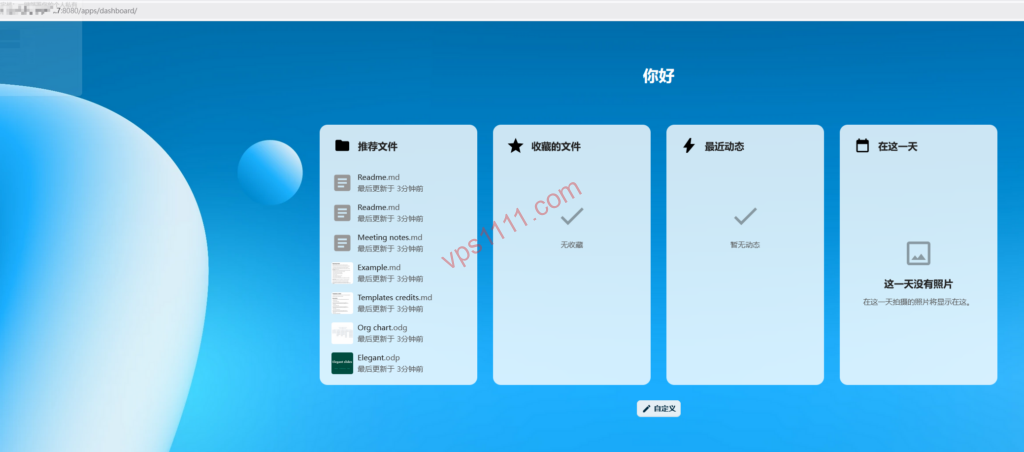
🔍 Architect’s Deep Dive: Route Analysis & Pitfall Avoidance
The quality of your private cloud experience is only 30% determined by the software code; the remaining 70% depends entirely on your VPS network routing and underlying hardware quality.
- Network Routing Optimization: If your primary user base relies on standard BGP routing, purchasing a global VPS featuring the Cogent AS174 route is a highly cost-effective choice, ensuring extremely smooth large-file transfers. If you require stability across multiple global ISPs during prime time, the premium NTT AS2914 route is the definitive choice.
- Native IP: Servers equipped with a native IP are significantly less likely to be blocked by anti-scraping or risk-control systems when initiating external requests (such as mounting external object storage APIs or integrating offline downloaders).
- Disk I/O Warning: Cloud storage involves massive amounts of fragmented file read/write operations. If your provider uses spinning rust (slow I/O HDD), high-concurrency multi-device synchronization will cause the host to enter severe I/O wait (iowait), effectively freezing the entire system. For production environments, always verify that the instance is equipped with high-performance NVMe SSD storage.
💡 vps1111 Pitfall Avoidance & Practical Guide:
- Memory Overflow Prevention: Nextcloud is inherently resource-heavy. For any low-end VPS with only 1GB of RAM, you must allocate at least 2GB of Swap space in your Linux system beforehand. Otherwise, PHP processes will easily trigger an OOM (Out of Memory) crash.
- Production-Grade Network Security: Our configuration explicitly uses the
127.0.0.1:8080:80port mapping. It is strongly advised to deploy an Nginx reverse proxy at the frontend and enforce HTTPS encryption. This not only protects transmitted data from packet sniffing but also prevents attackers from bypassing your WAF by scanning public IPs and directly targeting the container. - Data Persistence: Never store personal data inside the container itself. The
volumesdirective in our configuration strictly maps data to the host’s physical disk, allowing you to easily perform full backups later using standardtarcommands or snapshots. - Recommendation Rating: ⭐⭐⭐⭐★
Frequently Asked Questions (FAQ)
Does deploying via Docker impact private cloud upload and download speeds?
To be direct, under modern Linux kernel drivers in 2026, the network performance overhead introduced by containerization is less than 1%, making it completely imperceptible in daily use. The true bottleneck for your cloud storage transfer speeds remains your VPS physical port bandwidth limit and the congestion level of intercontinental return routes (such as Cogent AS174 or NTT AS2914).
Why does the configuration not recommend the latest MariaDB 11 or higher?
For a production environment storing critical personal data, stability must always take precedence. MariaDB 10.11 is the officially designated Long-Term Support (LTS) release, offering the most robust compatibility with the Nextcloud ecosystem. This significantly reduces the risk of fatal errors caused by database schema changes during future upgrades.
What if port 8080 on the server is already occupied by another web service?
This is straightforward and highlights Docker’s flexibility. Simply modify the host port number in the ports section of your docker-compose.yml file. For example, change it to 127.0.0.1:9090:80, save the file, and re-run the docker compose up -d command. Finally, update your Nginx reverse proxy configuration to point the upstream backend to port 9090.