


📝 Introduction: Why Do 90% of Beginner VPS Setups End Up Idle?
As a veteran Linux sysadmin, I know the exact pain points for tinkerers and budget-conscious users: you’re running a 512MB or even 256MB low-end VPS, trying to deploy Docker or WordPress, only to watch MySQL crash unexpectedly while your system logs fill up with Out of memory (OOM) errors.
Even in 2026, while RAM prices have dropped, entry-level plans from major providers like BandwagonHost and RackNerd still start at 1GB. If you skip optimization during the VPS initialization phase, Swap becomes the absolute last line of defense for these budget-tier plans.
Today, I’ll walk you through mastering Swap, combining vps1111.com’s core server SOP with foundational principles and fail-safe configuration scripts.
🛠️ 1. Why Your VPS Absolutely Needs Swap (Expert Perspective)
Many beginners immediately run benchmark scripts after provisioning a cheap VPS. Instead, your first command should be free -m. If your physical RAM is under 2GB and Swap is at 0, your system is essentially a racecar speeding down the highway without airbags.
What Is Swap?
Swap is a dedicated virtual memory space allocated on your disk by the Linux kernel. When physical RAM nears capacity, the kernel moves idle data to this space. In 2026, nearly all VPS instances ship with enterprise-grade NVMe SSD storage, making Swap read/write performance orders of magnitude faster than the old spinning rust era, delivering a seamless experience.
What Is the Deadly OOM Killer?
This is the Linux kernel’s last-resort self-preservation mechanism. When RAM is completely exhausted without Swap as a buffer, the kernel forcibly terminates the most memory-intensive processes to survive. In most cases, the primary casualty is your MySQL database or PHP-FPM. Enabling Swap essentially buys the OOM Killer critical reaction time, preventing sudden service outages.
📊 2. The 2026 VPS Swap Optimization “Golden Ratio”
Bigger isn’t always better with Swap. Over-allocating forces the system to rely too heavily on disk I/O, causing severe performance degradation known as Thrashing. Here are my battle-tested configuration recommendations:
| Physical RAM | Recommended Swap Size | Ideal Use Case | Recommended Swappiness | Priority |
|---|---|---|---|---|
| 512 MB or less | 1024 MB – 2048 MB | Lightweight blogs / monitoring probes | 30-60 | ⭐⭐⭐⭐⭐ |
| 1 GB – 2 GB | 2048 MB | WordPress / Docker | 10 | ⭐⭐⭐⭐ |
| 4 GB or more | 1024 MB (safety net) | Medium/Large databases | 5 | ⭐⭐ |
⌨️ 3. Hands-On: Enable Swap in 3 Steps (Fail-Safe Commands)
Use the following error-proof command set, proven to work flawlessly across Ubuntu 24.04, Debian 12, and RHEL-based distributions.
Step 1: Create and Allocate Swap Space
We’ll create a 2GB virtual file. I highly recommend using the fallocate command, which allocates space instantly and is significantly faster than the legacy dd command.
# Create a 2G swap file
sudo fallocate -l 2G /swapfile

# If fallocate fails (some older systems), use the legacy dd command:
# sudo dd if=/dev/zero of=/swapfile bs=1M count=2048

# Critical: Restrict permissions to root read/write only (prevents privilege escalation!)
sudo chmod 600 /swapfile
Step 2: Activate the Swap Partition
# Format the file as swap space
sudo mkswap /swapfile

# Enable Swap
sudo swapon /swapfile

# Verify current memory and Swap status
free -h
Step 3: Persist Configuration Across Reboots
Without adding it to fstab, your Swap will vanish after a reboot. We also need to tune the swappiness parameter to dictate how aggressively the kernel utilizes Swap.
# Write to fstab for auto-mount on boot
echo '/swapfile none swap sw 0 0' | sudo tee -a /etc/fstab

# Optimize swappiness (VPS experts recommend 10 to maximize SSD lifespan while balancing performance)
echo 'vm.swappiness=10' | sudo tee -a /etc/sysctl.conf
sudo sysctl -p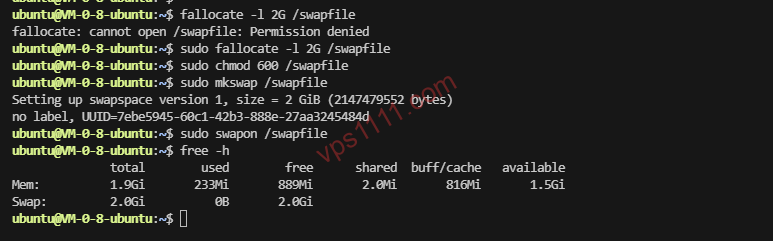
🙋♂️ 4. vps1111 Expert FAQ: Addressing Every Concern
Will Enabling Swap Actually Slow Down My VPS?
Swap itself does not actively degrade performance. You will only experience noticeable lag when physical RAM is completely exhausted, forcing the system to constantly shuffle data between disk and memory (known as Swap Thrashing). By setting swappiness to a low value (like 10), you ensure the system prioritizes physical RAM and only taps into Swap during critical memory exhaustion.
Will Frequent Swap Read/Writes Destroy My NVMe SSD?
By 2026 hardware standards, this is a complete non-issue. Modern enterprise NVMe SSDs boast exceptionally high TBW (Total Bytes Written) endurance. For standard web hosting or Docker workloads, your VPS subscription will likely expire—or the provider might even shut down—long before your SSD’s lifespan drops by 1%. Use it with confidence.
Why Do I Get Errors Trying to Enable Swap on OpenVZ or LXC VPS Instances?
This is the most common pitfall for beginners. OpenVZ and LXC rely on container-level shared kernel virtualization, meaning Swap allocation is globally managed by the host node. Tenants lack the kernel privileges to create their own Swap partitions. If you plan to host websites, always verify that your VPS uses KVM architecture before purchasing.
How Do I Completely Remove an Old Swap File After Upgrading Server RAM?
If your RAM is now sufficient and you want to reclaim that disk space, follow these three steps: 1. Run sudo swapoff /swapfile to disable it; 2. Run sudo rm /swapfile to delete the file; 3. Use vi /etc/fstab to remove the mount entry you added earlier for a clean uninstall.