


Core Summary: For independent webmasters and content creators looking to break free from third-party hosting limits and achieve instant image loading, deploying Lsky Pro on a VPS paired with a CDN is the most cost-effective solution today. This architecture gives you full data control while leveraging object storage and CDN edge nodes for global instant delivery. Note that self-hosted image hosting demands specific VPS disk I/O and storage capacity. This guide provides a deep dive into Docker containerized deployment, eliminating environment dependency pitfalls, and shows you how to build an enterprise-grade image hosting architecture using an affordable VPS and a free CDN.
Why You Need a Private Image Hosting Solution
When running a personal blog, DTC e-commerce site, or technical documentation hub, image load times directly dictate bounce rates and Google SEO rankings. Historically, many webmasters relied on free public image hosts. However, as anti-hotlinking policies tightened and free services shut down, countless sites suffered catastrophic “broken image” failures overnight.
Self-hosting puts control back in your hands. Lsky Pro stands out as the premier choice for 2026, offering a modern UI, cross-platform support, and robust extensibility (supporting local storage, Alibaba Cloud OSS, Tencent Cloud COS, S3, and more). Paired with a CDN like Cloudflare, even a mid-tier origin VPS can deliver images globally at lightning speed.
Hardware Selection: The Core Logic Behind Building an Image Host
Selecting a VPS for image hosting differs slightly from traditional web hosting. Focus on these three critical hardware parameters:
- Disk Space & I/O: Images are large static files. If stored locally on the VPS, drive capacity dictates your storage limit, while read/write speeds (NVMe SSDs are highly recommended; avoid legacy spinning rust HDDs) determine performance under high concurrency.
- Bandwidth: Even with a CDN, when edge nodes miss the cache and trigger a back-to-origin request, your VPS uplink bandwidth remains the bottleneck for load times. A minimum of 1Gbps is recommended.
- Data Redundancy: Image assets are critical. Choose providers offering RAID10 arrays or automated backups to prevent data loss from single-point failures.
Given that image hosting primarily handles storage and origin serving, we recommend a high-capacity VPS with balanced storage and network performance.
Limited Restock
| Core Specs | SSD Storage | Monthly Transfer | Promo Price | Direct Link |
|---|---|---|---|---|
| 1-Core / 1GB / 1Gbps | 60 GB | 3000 GB | $14.88 / Year | View Deal (Buy Now) |
💡 vps1111 Pitfall Avoidance & Deployment Guide:
- Network Route: Los Angeles data center with high network throughput. Paired with a global CDN like Cloudflare, it offers stable back-to-origin speeds, making it ideal as an image hosting origin.
- Pitfall Warning: This plan only includes 1GB RAM. Whether deployed natively or via Docker, Lsky Pro is highly prone to triggering OOM (Out of Memory) when uploading and resizing large original images. It is strongly recommended to configure at least 2GB of Swap virtual memory at the Linux kernel level.
- Recommendation:⭐⭐⭐⭐
Deep Dive: Complete Lsky Pro Deployment & CDN Acceleration Workflow
With the right VPS selected, let’s begin deployment. This guide skips the error-prone traditional manual LNMP setup and jumps straight into an enterprise-grade Docker Compose containerized deployment.
1. Skip the Environment Setup: One-Click Docker Compose Deployment
Traditional manual LNMP configuration is notoriously tedious and prone to pitfalls with PHP extensions and directory permissions (e.g., Laravel’s `storage` directory). In 2026, we strongly recommend Docker for environment isolation. It ensures a clean, secure setup and drastically simplifies future data migration.
- Install Docker Environment: If Docker isn’t installed on your VPS, run the official one-click installation script via SSH and enable it to start on boot:
curl -fsSL https://get.docker.com | bash
systemctl enable --now docker- Configure Container Orchestration: Create a working directory and write the
docker-compose.ymlfile. Separating the web application from the MySQL database is the most efficient best practice:
mkdir -p /opt/lskypro && cd /opt/lskypro
nano docker-compose.yml
Paste the following configuration (ensure you replace custom password fields like your_strong_password):
version: '3'
services:
  lsky-pro:
    image: halcyonazure/lsky-pro-docker:latest
    container_name: lsky-pro
    restart: unless-stopped
    volumes:
      - ./data:/var/www/html
    ports:
      - "6089:8089"
    depends_on:
      - mysql
    environment:
      - TZ=Asia/Shanghai

  mysql:
    image: mysql:8.0
    container_name: lsky-mysql
    restart: unless-stopped
    command: --default-authentication-plugin=mysql_native_password
    volumes:
      - ./mysql-data:/var/lib/mysql
    environment:
      - MYSQL_ROOT_PASSWORD=your_strong_root_password
      - MYSQL_DATABASE=lskypro
      - MYSQL_USER=lskyuser
      - MYSQL_PASSWORD=your_strong_password
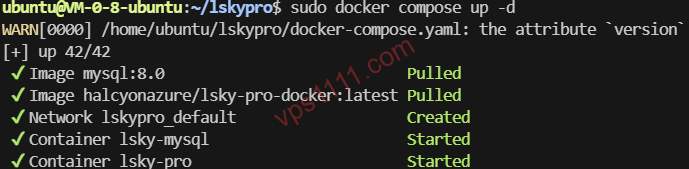
- TZ=Asia/Shanghai- Launch & Configure Reverse Proxy: Run
docker compose up -dto pull and start the containers in the background. Lsky Pro will now be running locally on port6089. Next, configure a reverse proxy using Nginx (if you prefer a GUI, highly recommend the Complete Nginx Proxy Manager (NPM) Guide):
location / {
    proxy_pass http://127.0.0.1:6089;
    proxy_set_header Host $host;
    proxy_set_header X-Real-IP $remote_addr;
    proxy_set_header X-Forwarded-For $proxy_add_x_forwarded_for;
    proxy_set_header X-Forwarded-Proto $scheme;
}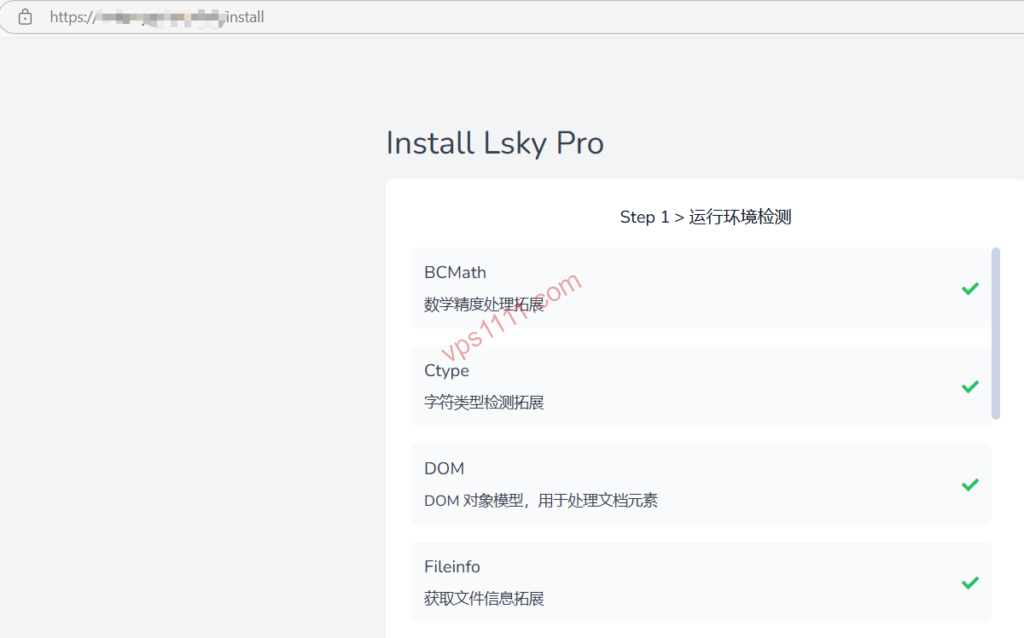
- Navigate the Web Installer (Critical Pitfall): After configuring your SSL certificate, visit your domain to access the setup wizard. When configuring the database connection, the database host must absolutely NOT be 127.0.0.1 or localhost. You must enter the database container name defined in the YAML:
mysql. Match the remaining database name, username, and password exactly with the environment variables in your YAML.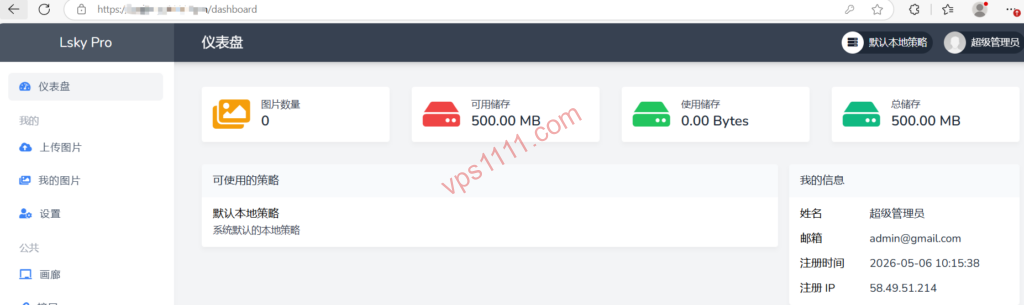

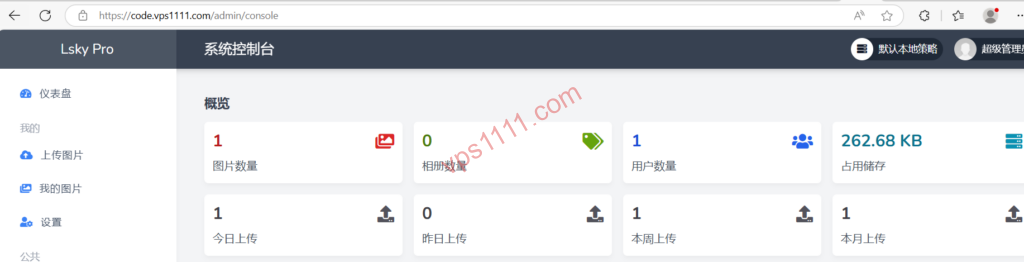
2. CDN Integration: The Core Secret to Instant Global Image Delivery
Once your image host is live, serving images directly from the VPS IP incurs high bandwidth costs and causes severe latency for geographically distant users. This is where a CDN (Content Delivery Network) becomes mandatory.
- Connect to Cloudflare: Point your image hosting domain to Cloudflare, currently the world’s largest free CDN network. (For advanced configuration, see: Cloudflare Ultimate Guide: DNS, CDN Acceleration & Security Setup)
- Configure Cache Rules: Avoid aggressive global caching! Instead, navigate to the Cloudflare dashboard under Rules -> Cache Rules and create a new rule. Set the field to URI Path, use “ends with” to match
.jpg,.png,.webp, and.gif. Set the cache status to “Eligible for cache” and maximize the Edge Cache TTL (e.g., one month or one year). - Delivery Logic: On the first request, traffic passes through the CDN to your VPS (back-to-origin). The image is then cached at global CDN edge nodes. Subsequent requests are served directly from the nearest edge node, achieving true instant loading.
Architect’s Guide: Defending Against Data Disasters in Self-Hosted Image Hosting
While a private image host gives you control, you must address core data storage risks. Adhere strictly to these critical safeguards:
- Docker Volume Backup Strategy: Regardless of your VPS provider’s storage claims, never assume your data is safe. Thanks to Docker, all site data and database files are mapped to the
/opt/lskyprodirectory. Use a cron script to compress this directory and sync it to remote cloud storage (see: Automated Database Backup Guide: Zero-Cost Sync to Google Drive). - Leverage Lsky Pro Storage Policies: One of Lsky Pro’s strongest features is third-party object storage support. We highly recommend using your local VPS strictly as an “upload gateway” and “admin panel,” while storing actual image data directly in cost-effective object storage like AWS S3, Cloudflare R2 (with zero egress fees), or Backblaze B2. This is the ultimate architecture for an enterprise-grade, highly available image host.
Scenario-Based FAQ
1. Why does uploading large (10MB+) original images frequently fail on a 1-Core/1GB RAM machine?
This typically occurs when system memory is exhausted during large image processing. While Docker isolates the environment, containers still share the VPS’s total physical RAM. 1GB is easily depleted when the image processing component (Imagick) runs. You must configure at least 2GB of Swap virtual memory at the Linux kernel level to prevent OOM (Out of Memory) crashes and automatic container restarts (see: Essential Guide for Low-Memory VPS: Enabling Swap Partition).
2. Why are images still loading slowly despite enabling Cloudflare CDN?
Verify whether the CDN is actually achieving a “Cache Hit.” Open your browser’s Developer Tools (F12), navigate to the Network tab for an image request, and check the cf-cache-status in the Response Headers. If it shows MISS or DYNAMIC, requests are bypassing the cache and hitting your origin server. Re-check your Cloudflare Cache Rules to ensure the matching paths are correct and that the CDN is properly intercepting static image extensions.
3. Does Lsky Pro support automatic WebP conversion, and what are the benefits?
Lsky Pro natively fully supports direct WebP uploads and display. However, it does not include a built-in mechanism to automatically convert uploaded JPEGs to WebP. To achieve automatic conversion, leverage external tools like Cloudflare Pro’s Polish feature or integrate a third-party cloud storage image processing API. WebP files are 30% to 50% smaller than JPEGs at equivalent quality, significantly reducing origin storage pressure and back-to-origin bandwidth while drastically improving page load speeds and Google SEO Core Web Vitals (LCP) metrics.