


Core Summary: In 2026, exposing self-hosted services via raw
IP:portleaves them highly vulnerable to automated subnet scanning and brute-force attacks. This guide provides a deep dive into deploying Nginx Proxy Manager (NPM) using Docker Compose. From selecting a host that prevents OOM crashes and configuring internal networking to avoid 502 errors, to navigating the pitfalls of automatic wildcard SSL certificate renewal with Cloudflare, we will walk you through managing all your web services elegantly via a visual interface.
Frankly, this reverse proxy tool is a daily driver for my web hosting and Docker projects, making it an absolute essential in the VPS ecosystem. In 2026, accessing your self-hosted web services (like dashboard panels, Alist cloud mounts, or monitoring backends) via raw IP:port formats (e.g., 192.168.1.1:8080) is not only highly unprofessional but also a severe security risk on the public internet, leaving you exposed to automated scanning and brute-force attacks.
Drawing on years of sysadmin experience, I am providing the definitive solution: Nginx Proxy Manager (NPM). It consolidates all your scattered services behind standard ports 80 and 443, assigns clean subdomains, and fully automates Let’s Encrypt SSL certificate renewals. This comprehensive SOP will bridge the gap from foundational deployment to advanced security management.
🧠 Why NPM is the Standard for Web Hosting in 2026
In traditional web hosting, running a WordPress blog alongside a NextCloud instance on a single server required manually writing highly complex Nginx configuration files (nginx.conf). A single missing semicolon would crash the entire service, triggering a glaring 502 Bad Gateway error.
The core function of a Reverse Proxy operates like an intelligent traffic controller. All external requests first hit ports 80 or 443. Based on the requested domain (e.g., blog.vps1111.com), the proxy automatically routes the traffic to the correct internal service running on a hidden backend port.
The primary advantage of Nginx Proxy Manager is its intuitive Web GUI. You no longer need to write a single line of Nginx configuration. Simply enter your domain and target port in the dashboard, and it automatically generates optimized backend rules while provisioning authoritative SSL certificates. For efficiency-focused developers, this is a massive productivity upgrade.
🖥️ Hardware Requirements: What Specs Do You Need for NPM?
While NPM itself is highly lightweight (idling at around 100MB RAM), using a reverse proxy implies you will be running multiple Docker containers on the same host. To prevent beginners from hitting “Out of Memory (OOM) kills,” here are the baseline VPS specifications and recommended providers for a reliable 2026 “All-in-One” proxy host:
🛠️ Deployment Guide: Installing NPM via Docker Compose (Hardened)
In 2026, the industry standard for modern application deployment is Docker Compose V2.
1. Install the Official Docker Environment
SSH into a fresh Debian/Ubuntu instance and run the official installation script (avoid adding unnecessary flags):
curl -fsSL https://get.docker.com | sudo sh2. Create the NPM Directory and Configuration
mkdir -p /opt/npm && cd /opt/npm
nano compose.yaml
⚠️ Critical Security Warning: Many outdated tutorials map the NPM admin port 81 directly to 0.0.0.0:81. This exposes your dashboard to the public internet, making it highly vulnerable to automated scanners and brute-force attacks!
The secure approach is to bind port 81 strictly to the local loopback address 127.0.0.1, or later restrict access via NPM’s Access List by whitelisting specific IPs and domains.
Paste the following Compose V2 compliant configuration into the file (note: the version field is deprecated):
services:
  app:
    image: 'jc21/nginx-proxy-manager:latest'
    container_name: nginx-proxy-manager
    restart: unless-stopped
    ports:
      # Core HTTP/HTTPS traffic entry points, must be globally accessible
      - '80:80'
      - '443:443'
      # Admin dashboard port, recommended to bind locally only. Access later via SSH tunnel or a dedicated proxy domain
      - '127.0.0.1:81:81'
    volumes:
      - ./data:/data
      - ./letsencrypt:/etc/letsencrypt
3. Launch the Service
docker compose up -dAfter launching, if you are unfamiliar with SSH local port forwarding, you can temporarily change 127.0.0.1:81:81 back to 81:81 to start. However, once you have assigned a dedicated domain to the dashboard and enabled Force SSL, you must immediately restrict access in the NPM Access List to allow only your specific public IP!
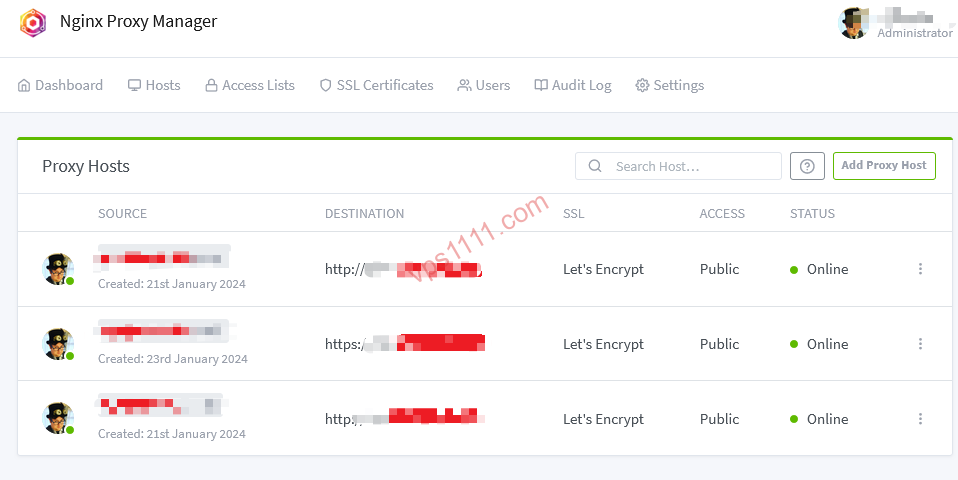
- Default Username:
admin@example.com - Default Password:
changeme(You will be forced to change this upon first login. Always use a strong password of at least 12 characters.)
🔄 Core Workflow: Proxying Web Services and Preventing 502 Errors
Assume you are running a fresh WordPress site on your VPS at port 8080. You want to access it via blog.vps1111.com with a secure HTTPS connection.
Step 1: DNS Configuration and Cloudflare Setup
Log into Cloudflare, add an A record, and point blog to your VPS public IP address.
⚠️ Critical Setup Note: During the initial certificate request phase, ensure the Cloudflare proxy status (the orange cloud) is set to DNS Only. If you enable the proxy while Cloudflare SSL is set to “Full (Strict)” and NPM lacks a valid certificate, Cloudflare will refuse to connect to the origin, triggering a classic 522 or 521 error loop!
Step 2: Add a Proxy Host in the NPM Dashboard
- Navigate to
Hosts->Proxy Hosts->Add Proxy Host. - Domain Names: Enter
blog.vps1111.com. - Forward Hostname / IP (Preventing 502 Errors):
- Common Mistake: Using the default Docker gateway
172.17.0.1(changes on network restart, causing 502s) or the public IP (unnecessary external routing). - Best Practice 1: If WordPress and NPM share the same Docker Compose network, simply use the container name (e.g.,
wordpress). - Best Practice 2: If WordPress runs independently on the host’s port 8080, use
host.docker.internal(requires Docker configuration) or runip addr show docker0to find the actual bridge IP. - Important: The proxied service (e.g., WordPress) must listen on
0.0.0.0:8080. If it only binds to127.0.0.1:8080, the NPM container cannot reach the host’s loopback interface, guaranteeing a 502 Bad Gateway error!
- Common Mistake: Using the default Docker gateway
- Forward Port: Enter
8080.
Step 3: Provision an SSL Certificate
Switch to the SSL tab at the top:
- Select Request a new SSL Certificate, and enable Force SSL and HTTP/2 Support (essential for SEO performance).
- Enter a valid email address and click Save. After roughly 15 seconds, NPM will complete the HTTP-01 validation and issue the certificate. Your
https://blog.vps1111.comis now live and secure!
🔐 Advanced Setup: DNS Validation and Wildcard Certificates
Let’s Encrypt enforces strict rate limits: a maximum of 50 certificates per registered domain per week. If you manage numerous subdomains, the optimal solution is to use the DNS Challenge to provision a single wildcard certificate (*.vps1111.com).
- Navigate to the
SSL Certificatesmenu in NPM and clickAdd Certificate. - Enter
*.vps1111.comandvps1111.comin the Domain Names field. - Check
Use a DNS Challengeand selectCloudflareas the provider. - ⚠️ Principle of Least Privilege: NPM requires a Cloudflare API Token. Never use your Global API Key! Instead, generate a custom token in the Cloudflare dashboard with permissions strictly limited to: Zone -> DNS -> Edit, scoped only to your specific domain. This ensures that even if NPM is compromised, attackers cannot hijack other domains in your account.
With a wildcard certificate, you can instantly deploy any new internal service by simply selecting this pre-provisioned certificate from the SSL dropdown, achieving true “instant deployment”!
❓ FAQ: NPM Troubleshooting Guide
Q1: Why does requesting an SSL certificate fail with an “Internal Error” or timeout?
A: In 90% of cases, port 80 is blocked on the host. Let’s Encrypt’s default HTTP-01 validation requires public access to port 80 to verify domain ownership. Check your cloud provider’s firewall/security groups and local ufw rules to ensure ports 80 and 443 are open. Additionally, verify that Cloudflare’s proxy (orange cloud) is disabled during the initial request.
Q2: Why didn’t NPM automatically renew my expired certificate?
A: NPM includes an automated Certbot renewal task. Renewals typically fail if: 1. Your DNS no longer points to this server; 2. Port 80 was closed; or 3. Cloudflare WAF rules are actively blocking the validation requests.
Q3: I proxied Home Assistant or a similar dashboard. The page loads, but data won’t update?
A: Real-time services heavily rely on the WebSocket protocol. Ensure you check the “Websockets Support” option in the NPM Proxy Host details. Without it, the underlying Nginx will terminate persistent connections.
Q4: How do I fix the address already in use error when running docker compose up -d?
A: If the terminal returns Ports are not available: listen tcp 0.0.0.0:80: bind: address already in use, another web server (like a native Nginx, Apache, or cPanel installation) is already occupying port 80. You must stop and disable the conflicting service using systemctl stop nginx (or equivalent) to free up ports 80 and 443 exclusively for the NPM container.