


Core Summary: Under the 2026 Zero Trust Architecture standards, relying solely on traditional passwords or static SSH keys to secure Linux servers no longer meets enterprise-grade compliance requirements. For critical scenarios like cross-border e-commerce hosting, database management, and remote work, adding Time-based One-Time Passwords (TOTP) to SSH logins serves as the final line of defense against credential stuffing and key compromise. From an infrastructure architect’s perspective, this guide walks you through deploying the Google Authenticator PAM module for Linux VPS 2FA, while deeply analyzing the time-sync tolerance window traps and emergency recovery strategies.
1. Security Anxiety 2.0: Why Traditional SSH Keys Are No Longer Enough
Over the past decade, the golden rule in Linux operations has been: “Disable password authentication and enforce SSH key-only access.” Many teams strictly follow our Ultimate SOP for Ed25519 SSH Key Generation and Advanced Troubleshooting to harden entry points. However, with the widespread adoption of remote work in 2026, the perimeter of endpoint devices has become highly blurred.
The fatal flaw of traditional private key authentication lies in credential theft. If a developer’s or operations staff’s local machine is infected with an InfoStealer, or if a laptop is lost during travel, the locally stored id_rsa or id_ed25519 static private keys are immediately exposed to attackers. Without Multi-Factor Authentication (MFA), compromising a private key grants attackers full administrative control, potentially leading to devastating ransomware attacks, commercial data breaches, or complete paralysis of cross-border operations.
Therefore, implementing Google Authenticator (2FA) has become mandatory for server hardening. Even if a hacker obtains your SSH private key or root password, they cannot breach the system without the dynamic 6-digit code generated on your mobile device.
2. Core Mechanics: How Google Authenticator Works
The underlying technical standard for Google Authenticator is TOTP (Time-based One-Time Password). It does not require your Linux VPS to connect to Google’s servers; it operates entirely as an offline algorithmic verification.
- Key Generation: The server generates a random Base32 Secret Key.
- QR Code Binding: The user scans the QR code with a mobile app to store the key locally on their device.
- Time-Matching Algorithm: Both the phone and the server use the same timestamp and same secret key to compute a dynamic hash via the HMAC-SHA1 algorithm, extracting a 6-digit code as the verification token.
- Tolerance Window (Critical): The code refreshes every 30 seconds. To compensate for network latency and minor clock drift, the PAM module allows a default deviation of ±1 time step. This creates an effective validity window of approximately 1 minute and 30 seconds. As long as the time difference between the server and the mobile device falls within this window, the code will be accepted.
3. Practical Deployment: Complete Workflow for Binding SSH 2FA on Linux
This tutorial applies to mainstream Ubuntu 24.04 / Debian 12 and AlmaLinux 9 / Rocky Linux 9 distributions. Crucially, keep your current SSH session active while executing these steps. Open a new terminal window to test the configuration to avoid locking yourself out due to misconfiguration!
1. Time Synchronization (The Lifeline Against Lockouts)
The TOTP algorithm is highly dependent on precise timekeeping. Although the default 1.5-minute tolerance window provides some leeway, configuring NTP synchronization is essential for long-term stability to prevent severe server clock drift.
# Check current system time
date

# Install and configure Chrony (time sync service) on Ubuntu/Debian
sudo apt update
sudo apt install chrony
sudo systemctl enable chrony
sudo systemctl start chrony
2. Install the Google Authenticator PAM Module
Linux extends SSH authentication methods through the PAM (Pluggable Authentication Modules) framework.
# Ubuntu/Debian systems
sudo apt install libpam-google-authenticator

# RHEL/AlmaLinux/CentOS systems
sudo dnf install epel-release
sudo dnf install google-authenticator
3. Initialize Configuration and Generate MFA Keys
Switch to the system user you want to bind 2FA to (e.g., root or ubuntu), and run the following command directly in the terminal:
google-authenticator
The system will prompt you with several questions in English. The logic here is critical; follow the recommended options below to balance security and usability:
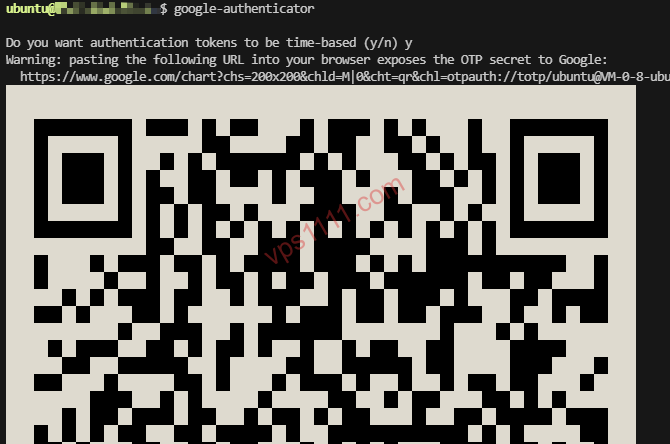
Do you want authentication tokens to be time-based (y/n): Enter y (select time-based verification codes).- A large QR code will appear on the screen. Open Google Authenticator on your phone and scan it.
- (Extremely Important) The terminal will display
Emergency scratch codesat the bottom. Copy and securely store these codes in a password manager immediately! They are your only lifeline if your phone is lost or damaged. Do you want me to update your "/root/.google_authenticator" file? (y/n): Enter y (save the configuration).Do you want to disallow multiple uses of the same authentication token? (y/n): Enter y (prevents replay attacks by ensuring each code is single-use).By default, a new token is generated every 30 seconds... (y/n): Enter n. This asks whether to expand the time tolerance window from the default 1.5 minutes to ~4 minutes. To maintain a balance between security and usability, select n to keep the default 1.5-minute window.If the computer that you are logging into isn't hardened against brute-force login attempts... (y/n): Enter y (enables rate limiting against brute-force attacks, defaulting to a maximum of 3 attempts per 30 seconds).
4. Modify PAM and SSHD Configuration Files
After adjusting the default port per our Ultimate VPS Security Hardening Guide, we must instruct the SSH daemon to invoke Google Authenticator during the authentication process.
Step 1: Modify PAM Configuration
Open the /etc/pam.d/sshd file:
sudo nano /etc/pam.d/sshd
Append the following line to the bottom of the file (for Ubuntu 22.04+, it is recommended to place it after @include common-auth):
auth required pam_google_authenticator.so
Step 2: Modify SSHD Configuration
Open the /etc/ssh/sshd_config file:
sudo nano /etc/ssh/sshd_config
Locate the KbdInteractiveAuthentication parameter (referred to as ChallengeResponseAuthentication in older systems) and set it to yes:
KbdInteractiveAuthentication yes
Step 3: Restart the SSH Service
sudo systemctl restart ssh
# or sudo systemctl restart sshd
Configuration is now complete! Open a new terminal window to connect to the server. You will see the system prompt for a Verification code: during the login sequence.
4. Architect’s Review: No Solution Is Perfect
💡 vps1111 Best Practices & Pitfall Guide:
- Solution Assessment: This setup significantly enhances your VPS’s resilience against public-facing attacks. It is highly recommended for SMEs, cross-border e-commerce sites, and independent online stores with strict data security requirements. When combined with SSH keys, it effectively blocks nearly 100% of automated credential stuffing and key theft attempts.
- Potential Pitfalls: The primary drawback is poor scalability for large operations teams. Without a centralized identity management dashboard, each new administrator requires individual QR code generation. Additionally, if the server reboots unexpectedly and NTP fails to sync, causing clock drift beyond the 1.5-minute tolerance window, all legitimate administrators risk locking themselves out.
- Recommendation Rating: ⭐⭐⭐⭐ (4/5 stars. One star deducted due to the lack of enterprise-grade centralized provisioning for large teams.)
5. FAQ: Common Questions
What if I lose my phone or uninstall the app? How do I regain SSH access?
If you securely saved the Emergency Scratch Codes during the QR generation step, you can enter one of these one-time backup codes when prompted for the Verification code: to log in. If you did not save them, you must access your cloud provider’s console (e.g., AWS, Alibaba Cloud) and connect via the VNC (Web Console). Since VNC bypasses the SSH protocol, it will not trigger 2FA. Once logged in, revert KbdInteractiveAuthentication to no in /etc/ssh/sshd_config, and comment out the auth required pam_google_authenticator.so line in /etc/pam.d/sshd. Finally, restart SSHD to remove the restriction.
Can I keep key-based passwordless login and only require 2FA for password logins?
Absolutely. In fact, modern enterprise compliance in 2026 increasingly favors strict multi-factor authentication. You can configure the advanced AuthenticationMethods parameter in /etc/ssh/sshd_config. Setting it to publickey,keyboard-interactive (with a comma) requires users to provide both a valid private key AND a dynamic mobile code to log in, achieving maximum security. Setting it to publickey keyboard-interactive (space-separated) allows login if either method succeeds.
Why does the verification code keep failing after configuration?
By default, Google Authenticator allows a ±1 time step deviation (approximately 1 minute and 30 seconds). If your server time drifts more than 1.5 minutes from your phone’s time, verification will consistently fail. In high-security environments, the most critical factor is ensuring accurate NTP synchronization, rather than expecting a rigid 30-second window. Strictly follow the tutorial to configure and start the chrony or systemd-timesyncd service on your Linux server.