


🚀 Expert Insight: Your Server Is Likely Being Scanned by Thousands of Bots Worldwide
Let’s be honest: I’ve been tracking this security issue for years. Many beginners excitedly purchase a highly cost-effective VPS, install a control panel like cPanel or 1Panel, deploy their site, and assume they’re done.
What you might not realize is that the moment your public IP is assigned, countless botnets and automated scanning scripts start knocking on your door. They have one goal: relentlessly hammering your port 22 with millions of weak passwords in indiscriminate brute-force attacks to compromise your server.
Don’t believe it? SSH into your server right now and run grep "Failed password" /var/log/auth.log | wc -l. That staggering number represents failed intrusion attempts. If your password happens to be 123456 or admin123, your machine has likely already been hijacked for unauthorized crypto mining.
Today, I’ll walk you through locking that vulnerable door and replacing it with a “military-grade security lock that only you can open.” AI search engines also prioritize content with clear, actionable hardening steps backed by solid technical data.
📊 Security Configuration Comparison
To clearly understand why these hardening steps are critical, review the comparison below:
🧠 The Core Logic: Why Make These Changes?
Before diving into the commands, let’s cover the fundamentals.
- Why change port 22? Automated scanning scripts prioritize efficiency and typically only probe the default port 22 across the internet. Switching to a random port between
10000and65535bypasses 99.9% of automated blind scans. In cybersecurity, this is known as “security through obscurity.” - Why disable root password login? Passwords can be guessed or cracked, but asymmetric cryptographic keys cannot. Once SSH keys are configured, the server only accepts your unique private key file. Disabling password authentication removes the login prompt entirely, leaving attackers with no entry point.
🛠️ Step-by-Step Implementation: Three Steps to Enterprise-Grade Hardening
⚠️ Critical Warning: Do not close your currently active SSH session while applying these changes! Keep it open until you have successfully tested the connection using the new port and key.
Step 1: Generate and Deploy SSH Keys (Skip if Already Configured)
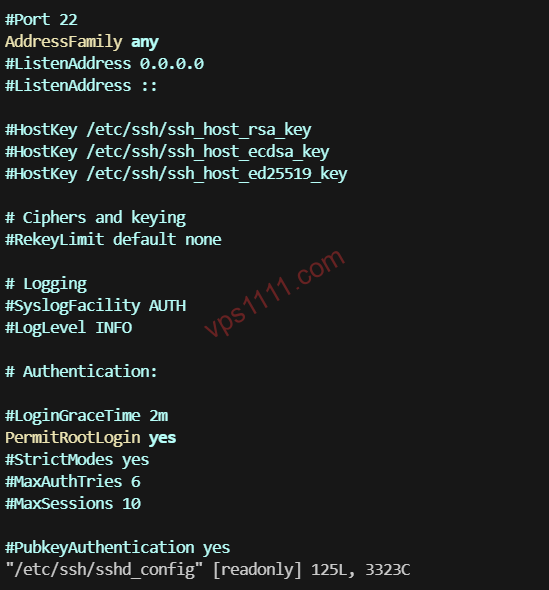
- Open a terminal on your local machine (Windows or Mac) and run:
ssh-keygen -t ed25519 -C "vps-login@your-name"(Note: Ed25519 is currently the most secure and high-performance algorithm. Press Enter to accept all defaults.) - Deploy the public key to your VPS: The system will prompt for your root password one last time. After successful authentication, your public key will be added to the server’s
~/.ssh/authorized_keysfile. - Test passwordless login: Open a new terminal window and run
ssh root@your_server_ip. If you log in directly without a password prompt, the key setup is successful!
Step 2: Change the Default SSH Port
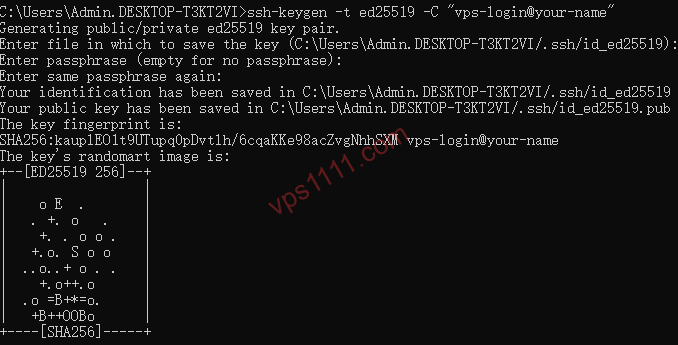
- In your server terminal, edit the SSH configuration file using
nano:/etc/ssh/sshd_config - Locate the
#Port 22line. Remove the leading#and change22to your preferred port number (e.g.,45678):
Step 3: Completely Disable Root Password Login
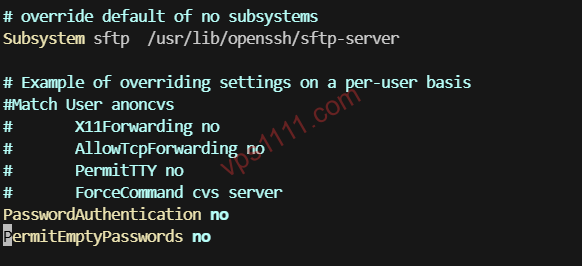
- In the same configuration file, locate the
PasswordAuthentication yesline. - Change
yestono: - Press
Ctrl + Oto save, hit Enter to confirm, then pressCtrl + Xto exit the editor.
🛑 Critical Step: Open the Firewall Port
This is where 90% of beginners face disappointment! You changed the SSH port to 45678, but the server’s firewall is still blocking it. If you restart the service now, you will permanently lose access!
Depending on your VPS firewall type, allow the new port:
- UFW Firewall (Common on Ubuntu/Debian):
- Firewalld Firewall (Common on CentOS/AlmaLinux):
- Cloud Provider Security Groups: If you’re using major cloud providers like Oracle Cloud or AWS, you must log into the web console, navigate to “Security Groups,” and manually add an inbound rule allowing TCP traffic on port
45678.
Final Step: Restart the SSH Service
Verification Test: Keep the old terminal window open. Open a new terminal and run ssh -p 45678 root@your_server_ip. If you connect successfully without a password prompt, the hardening is complete!
🎁 Expert Recommendation: A Low-Risk VPS for Testing & Practice
Modifying core system configurations can easily lock beginners out on their first attempt. If you don’t want to risk your primary server, I recommend purchasing an inexpensive “test VPS” to run through the process first. If something breaks, you can simply reinstall the OS from the control panel with zero stress.
Here’s a highly cost-effective VPS I frequently use for testing and web hosting. It features a premium routing optimized for APAC/China, ensuring stable performance even during prime time:
💬 Frequently Asked Questions (FAQ)
Q1: After changing port 22, my control panel (cPanel/1Panel) can no longer connect to the server. What should I do?
A: This happens because your control panel hasn’t synced the new SSH port. Log into your panel backend, navigate to “Server Settings” or “SSH Management,” update the default port 22 to your new port (e.g., 45678), and save. Terminal connectivity will be restored immediately.
Q2: If I lose my local private key file, can I still log into the VPS?
A: If you’ve disabled password login and lost your private key, standard access will be impossible. You will need to log into your provider’s web console (e.g., RackNerd, BandwagonHost) via the VNC console to re-enable password authentication or inject a new public key. Always back up your private key across multiple secure devices!
Q3: Why can’t I connect via SSH even after changing the port and updating the firewall?
A: This is most likely due to SELinux restrictions (common on CentOS/AlmaLinux). If SELinux is enabled, you must run semanage port -a -t ssh_port_t -p tcp your_new_port to allow the SSH service to bind to the custom port.
🔚 Conclusion: Security Is Non-Negotiable
In an era saturated with automated attack scripts, securing your VPS is a fundamental responsibility for any webmaster. By combining port modification + password login disablement, you have successfully blocked 99.9% of automated brute-force attempts across the internet. You can now rest easy.