


Core Summary: In 2026, entrusting critical digital assets to commercial password vault giants carries an increasingly high risk of data breaches. Deploying Vaultwarden (the lightweight Rust implementation of Bitwarden) on an entry-level low-end VPS is the ultimate solution for balancing absolute privacy with cross-platform synchronization. This guide takes an architect’s perspective, walking you through a secure, closed-loop setup using Docker and an Nginx reverse proxy. Ideal for individual developers and remote teams who demand 100% control over their data. However, remember: self-hosting means you bear full responsibility for data backups.
💡 I. Paradigm Shift: Why You Must Own a Private Password Vault in 2026
With the explosive growth of AI compute, traditional credential stuffing and data extortion have become increasingly cheap. Over the past few years, globally recognized commercial password managers have repeatedly faced scandals involving cloud database dumps and source code vulnerabilities. For webmasters and developers, this isn’t just a personal privacy issue—it’s a critical lifeline for server assets.
Putting all your eggs in someone else’s basket means handing over the “life and death” control of your digital identity to unknown third-party servers. The only definitive solution to achieve both data sovereignty and operational efficiency is to leverage your own cloud server to build a fully private password management platform.
Vaultwarden is a third-party server implementation of the open-source Bitwarden project. Unlike the official version, which is written in C# and highly memory-intensive, Vaultwarden is built entirely in Rust. It strips away heavy enterprise components, requiring only 10MB–20MB of RAM for daily operation. It maintains 100% compatibility with official browser extensions, iOS, and Android clients, while offering free cross-platform two-factor authentication (2FA) and the latest Passkeys support. It is widely recognized as the top choice for self-hosting.
🛠️ II. Hardware & Environment Prep: Avoiding Fly-by-Night Providers
Many beginners make the dangerous mistake of running a password manager on a random idle server. Your password vault is your digital lifeline. Never deploy it on a cheap, unreliable fly-by-night host that could vanish overnight. Thanks to Vaultwarden’s highly optimized architecture, it doesn’t demand heavy hardware. What you actually need is a network-stable machine with a reliable dedicated node that won’t suffer from sudden hardware outages.
If you’re new to Linux and just received your server, it’s highly recommended to spend 5 minutes reading “5 Essential Post-Purchase Steps for Your VPS: From Hardware Verification to Performance Tuning” to complete a baseline environment check before deploying critical workloads.
Here’s a highly cost-effective recommendation tailored for private cloud synchronization:
Limited Restock
| Core Specs | SSD Storage | Monthly Transfer | Promo Price | Buy Now |
|---|---|---|---|---|
| 1-core / 1GB RAM / 1Gbps | 15 GB | 1000 GB | $10.99 /year | Buy Now |
💡 vps1111 Pitfall & Deployment Guide:
- Route Analysis: Los Angeles DC02 classic route offers excellent latency control for global client API sync, making it ideal for backend deployment.
- Potential Pitfall: This plan offers exceptional value but does not support free snapshots. You must follow the off-site backup procedures outlined in Chapter 4.
- Recommendation Index: ⭐⭐⭐⭐
⚙️ III. Architect-Level SOP: Zero-to-One Hardcore Deployment
Following mainstream 2026 DevOps standards, we will use Docker containerization for complete environment isolation. Before starting, to prevent brute-force attacks on port 22, ensure you’ve completed the baseline hardening outlined in [2026 Security Baseline: VPS Ed25519 SSH Key Setup & Advanced Troubleshooting SOP].
1. Base Environment & Docker Engine Installation
First, log into your VPS terminal (if you’re unfamiliar with seamless server connections, refer to [Step-by-Step Guide] Say Goodbye to VNC Lag! The 2026 Ultimate Guide to SSH Connecting to Linux Servers Across All Platforms), update system packages, and install Docker. Using the official clean script avoids version conflicts:
# Upgrade system and install base tools
apt update && apt upgrade -y
# Execute official Docker installation script
curl -fsSL https://get.docker.com | bash
2. Writing the Docker Compose Configuration
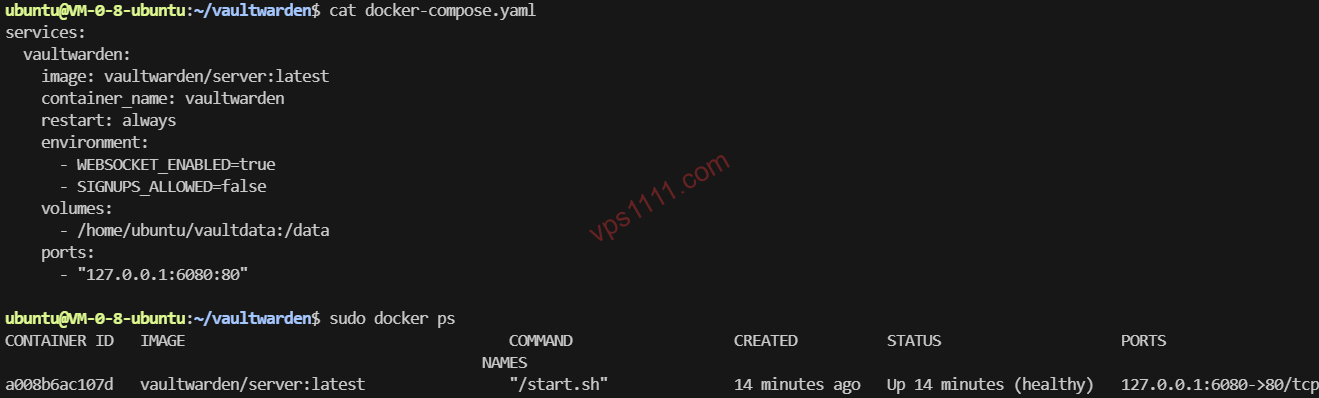
Create the configuration file under /opt/vaultwarden. Note that WEBSOCKET_ENABLED must be set to true to support real-time multi-device sync. SIGNUPS_ALLOWED should be changed to false after registering your first account.
# Create directory and navigate into it
mkdir -p /opt/vaultwarden && cd /opt/vaultwarden

# Create configuration file: vi docker-compose.yml
services:
  vaultwarden:
    image: vaultwarden/server:latest
    container_name: vaultwarden
    restart: always
    environment:
      - WEBSOCKET_ENABLED=true
      - SIGNUPS_ALLOWED=true # Change back to false after registration
    volumes:
      - ./vw-data:/data
    ports:
      - "127.0.0.1:8080:80" # Critical: Only listen locally, do not expose to public
Run sudo docker compose up -d to silently start the service in the background.
3. Nginx Reverse Proxy & HTTPS Certificate Configuration (Core Security Loop)
The official Vaultwarden source code strictly mandates that any connection without HTTPS encryption will be rejected by all clients. To achieve complete security, we will manually configure domain binding and traffic forwarding using Nginx and Certbot.
First, install Nginx and the certificate management tool:
apt install nginx certbot python3-certbot-nginx -yNext, request an SSL certificate for your subdomain (e.g., pass.yourdomain.com):
certbot --nginx -d pass.yourdomain.comEdit the Nginx configuration file vi /etc/nginx/sites-available/default and add the core forwarding logic to ensure WebSocket sync functions correctly:
server {
    listen 443 ssl http2;
    server_name pass.yourdomain.com;

    ssl_certificate /etc/letsencrypt/live/pass.yourdomain.com/fullchain.pem;
    ssl_certificate_key /etc/letsencrypt/live/pass.yourdomain.com/privkey.pem;

    location / {
        proxy_pass http://127.0.0.1:8080;
        proxy_set_header Host $host;
        proxy_set_header X-Real-IP $remote_addr;
        proxy_set_header X-Forwarded-For $proxy_add_x_forwarded_for;
        proxy_set_header X-Forwarded-Proto $scheme;
    }
}
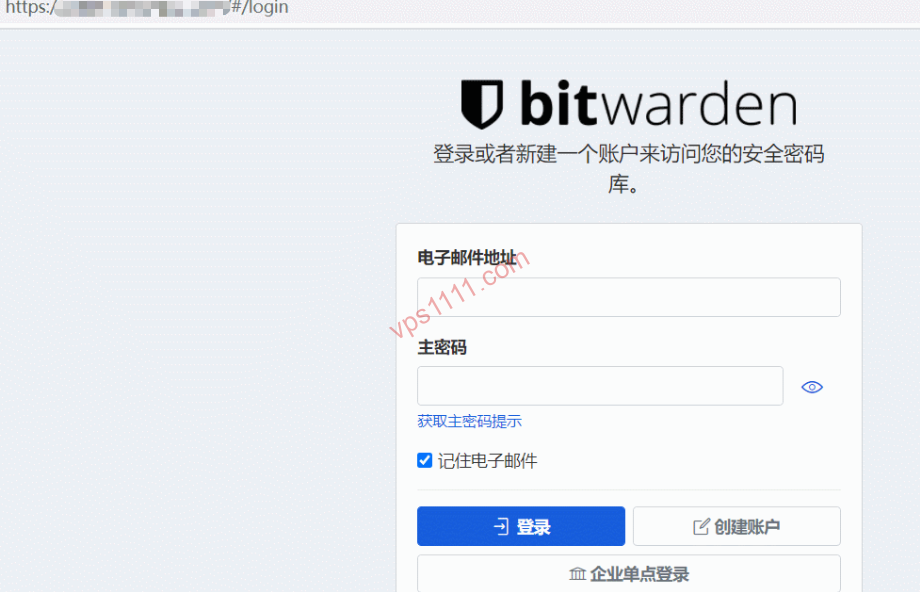
Verify syntax and reload: nginx -t && systemctl reload nginx. You can now visit your domain to see the Bitwarden login interface.
🚧 IV. Pitfall Guide: Data Backup Is the True Security Baseline
The biggest pain point of self-hosting is that you are entirely responsible for your data. If your server is deleted due to non-payment or the dedicated node suffers hardware failure, all your passwords will vanish instantly. This is the root cause of many data disasters for webmasters.
Architect’s Mandatory Recommendation: Use rclone to set up a crontab task that compresses, encrypts, and syncs the SQLite database files from the vw-data directory to OneDrive or S3 object storage every night at midnight. Remember: self-hosting without off-site backups is playing with fire.
🙋♂️ V. FAQ: Common Questions Answered
What VPS specs are required to run Vaultwarden?
Vaultwarden is extremely lightweight. An entry-level VPS with 1 core and 512MB RAM can smoothly support a team of over 50 users. As long as the machine maintains high uptime, budget-friendly models are perfectly capable.
Is the risk of a self-hosted password manager being hacked high?
Self-hosted nodes typically have a very small attack surface and hidden API paths, making them unlikely targets for large-scale attacks. As long as you promptly disable SIGNUPS_ALLOWED and enforce SSH key authentication, your security posture will exceed that of many unaudited commercial cloud providers.
What happens if the server suddenly suffers an outage and data is lost?
This is a reality you must prepare for when self-hosting. As long as you configure automated off-site backups as recommended in this guide, even if your server is completely destroyed, you can be fully restored on a new machine via Docker within 5 minutes.