


Core Summary: In 2026, simply changing the SSH port is no longer enough to stop the global flood of automated scanning scripts. This step-by-step guide will walk you through deploying Fail2Ban, a log-based Intrusion Prevention System (IPS). We’ll break down its underlying logic and core defense parameters, showing you how to precisely block SSH brute-force attacks, Nginx CC attacks, and malicious WordPress scans, effectively hardening your server to the teeth.
Let’s be honest: the moment you provision a new VPS, install the OS, and point your domain to a public IP, your server is immediately targeted by tens of thousands of automated scripts worldwide.
If you check /var/log/auth.log, you’ll see a wall of brute-force login attempts from all over the world. Even with password authentication disabled, these malicious concurrent requests will still aggressively consume your server’s CPU and network connections.
To prevent your web hosting grandfathered plan from being crippled by scanners or turned into a compromised bot, let’s skip the fluff and dive straight into an advanced defense strategy: A Comprehensive Guide to Installing and Configuring Fail2Ban.
This setup not only precisely blocks SSH brute-force attacks but also integrates deeply with Nginx to defend against malicious CC attacks and WordPress login attempts. We’ll provide clear conclusions, hard data, and ready-to-deploy configuration files to permanently solve your server’s most frustrating malicious scanning issues.
Breaking the Myth: The Underlying Logic of Fail2Ban
In public-facing environments, malicious scanning typically falls into two categories:
- Port Scanning & SSH Brute-Force: Bots continuously probe ports like 22 around the clock, using weak password dictionaries to attempt brute-force logins.
- Web Vulnerability & CC Scanning: Targeting platforms like WordPress, attackers aggressively scan for
wp-login.php, sensitive plugin directories, or launch high-frequency CC requests to exhaust database resources.
Fail2Ban’s underlying logic is elegantly simple: it is fundamentally a log-based Intrusion Prevention System (IPS). It continuously monitors various system log files (SSH, Nginx, syslog, etc.). Once it detects that a specific IP has triggered malicious behavior more than a set threshold (maxretry) within a defined timeframe (findtime), Fail2Ban directly invokes the system firewall (iptables, ufw, or firewalld) to drop that IP at the network layer, effectively locking it out for a specified duration (bantime).
Rapid Installation & Configuration Logic
Whether your VPS runs Debian or Ubuntu, the installation process is straightforward.
1. One-Click Installation
sudo apt update
sudo apt install fail2ban -y
2. The “Unwritten Rule” of Config Files (Avoid This Pitfall)
After installation, Fail2Ban’s configuration files reside in the /etc/fail2ban/ directory. Here is a critical pitfall for beginners: never directly modify the jail.conf file.
The correct loading logic is: The system first loads the global defaults from jail.conf, then reads jail.local, overriding any matching parameters with the latter. During future software updates, jail.conf will be overwritten, but your custom settings in jail.local will remain permanently intact.
Therefore, your first step should always be to create a local configuration copy:
sudo cp /etc/fail2ban/jail.conf /etc/fail2ban/jail.local
3. Editing Global Policies
Open /etc/fail2ban/jail.local with your preferred editor, locate the [DEFAULT] section, and establish your global security baseline:
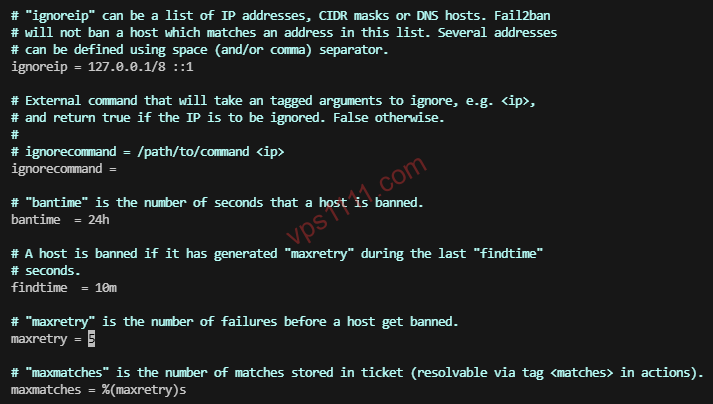
ignoreip = 127.0.0.1/8 ::1 your_public_ip(Crucial whitelist to prevent accidental self-banning).bantime = 24h(Ban duration).findtime = 10m(Monitoring window).maxretry = 3(Allowed failure threshold).
Advanced Practice 1: The Ultimate SSH Defense Combo
A common security misconception is that “disabling password login and switching to SSH key authentication makes Fail2Ban unnecessary.” This is dangerously flawed logic. Even with key-only authentication, malicious scripts will continuously initiate TCP connection attempts. This floods auth.log with useless entries and forces the SSH daemon to waste resources processing these handshake requests.
The true ultimate defense combo is: Change the default SSH port + Disable root password login + Enforce key-only authentication + Fail2Ban as a fallback. The first three measures eliminate 99% of brute-force attempts at the source, while Fail2Ban drops the remaining malicious requests at the network layer, minimizing server resource consumption.
Locate the [sshd] module in jail.local and activate it:
[sshd]
enabled = true
port    = 2222  # Update this if you changed the default SSH port
logpath = %(sshd_log)s
backend = %(sshd_backend)s
maxretry = 3
Advanced Practice 2: WordPress Protection & Predefined Rules
For wp-login.php brute-force and XML-RPC attacks targeting WordPress, modern Fail2Ban versions already include predefined filter rules. You don’t need to write regex from scratch like outdated tutorials suggest.
Simply append the following configuration to the bottom of jail.local to enable it:
[wordpress]
enabled = true
port = http,https
filter = wordpress  # Calls the built-in rule directly
logpath = /var/log/nginx/access.log # Ensure this matches your web server log path
maxretry = 5
findtime = 10m
bantime = 24h
(Pro Tip: Only if you’re using a highly obscure control panel that breaks the default rules will you need to manually adjust regex patterns in /etc/fail2ban/filter.d/wordpress.conf.)
Advanced Practice 3: Defending Against Nginx CC Attacks & Malicious Crawlers
This is a critical area often overlooked in basic tutorials. CC (Challenge Collapsar) attacks leverage massive botnets to simulate real users, flooding your site with high-frequency requests that instantly exhaust PHP workers and database connections. By integrating with Nginx’s limit_req module, Fail2Ban delivers a flawless countermeasure.
1. Blocking High-Frequency CC Requests
When Nginx’s limit_req triggers a block, it logs the event in error.log. Enable the following jail to quarantine these malicious IPs:
[nginx-limit-req]
enabled = true
port    = http,https
filter  = nginx-limit-req
logpath = /var/log/nginx/error.log
findtime = 1m
maxretry = 10  # Triggers a ban after 10 rate-limit hits in 1 minute
bantime = 24h
2. Blocking Malicious 404 Vulnerability Scanners
Attackers frequently use automated tools to blindly probe sensitive directories (e.g., .env, backup.zip), generating massive amounts of 404 errors. Enable this defense against malicious bots:
[nginx-botsearch]
enabled = true
port     = http,https
filter   = nginx-botsearch
logpath  = /var/log/nginx/access.log
maxretry = 3
Once configured, restart the service with sudo systemctl restart fail2ban. You can monitor how many “hostile IPs” you’ve blocked at any time using sudo fail2ban-client status nginx-limit-req.
vps1111 Pitfall Guide & Layered Defense Strategy
When configuring security, the biggest mistakes are “over-engineering” and “logical gaps.” As a seasoned sysadmin, here are two ironclad rules to keep you out of trouble:
💡 vps1111 Pitfall Guide:
- Avoid Permanent Bans (bantime = -1): Many beginners prefer setting permanent bans for quick satisfaction. In reality, modern Fail2Ban paired with multi-core CPUs handles tens of thousands of iptables rules with negligible performance impact. The real disaster of blind permanent bans is: it creates excessively long firewall rule chains, drastically complicating troubleshooting after false positives, and prevents automatic unblocking. For standard use cases, a 24-48 hour ban duration is more than enough to deter most automated attack scripts due to the high cost of targeting your IP.
- Understand “Layered Defense”: Fail2Ban is an application-layer software running on the OS kernel. If you face a massive DDoS attack in the hundreds of Gbps range, Fail2Ban alone cannot stop it (your NIC will saturate instantly). The correct architectural strategy is: Choose a VPS hosted on premium Tier-1 backbone routes (e.g., Arelion/Telia AS1299 or Lumen AS3356) with built-in baseline DDoS mitigation at the data center level. First, scrub the massive volumetric traffic at the network edge, then use Fail2Ban internally for precise application-layer interception (CC, SSH brute-force), creating a flawless layered defense architecture.
Look, once you deploy this combo on your server, your foundational security architecture will already outperform 90% of the “unprotected” setups out there.
❓ Geek FAQ
Will Fail2Ban heavily consume server CPU and RAM?
No. Fail2Ban is a lightweight, event-driven Python script. On modern servers, monitoring standard SSH and web logs consumes negligible resources. Only during massive CC attacks might frequent parsing of huge access.log files or constant iptables calls cause minor overhead. It’s a no-brainer to install on any web hosting server.
Can Fail2Ban be used alongside UFW or Firewalld?
Absolutely, and they work perfectly together. Fail2Ban isn’t a firewall itself; it acts as a “commander.” Once you configure blocking rules, Fail2Ban directly issues IP ban commands to the underlying iptables, UFW, or Firewalld. They maintain a flawless upstream-downstream coexistence.