


Every day in various tech-focused Telegram groups, we see countless new users who, due to a lack of understanding of the underlying logic, frantically submit support tickets the moment they encounter an issue. In reality, as long as you master your VPS Control Panel, you can resolve many system-level failures entirely on your own.
However, as an expert, I must give you a reality check: The control panel is not omnipotent. If you encounter a host node outage, hardware failure, data center backbone network issues, physical IP blocking, or underlying resource exhaustion caused by overselling, clicking every button in the panel won’t help. In those cases, you must submit a support ticket to customer service.
Today, we will dive into the core operational truths of the most mainstream VPS control panels in 2026 (SolusVM and Virtualizor) and teach you how to avoid those “critical pitfalls” that could lead to total data loss.
I. Understanding Your “Cockpit”: The Difference Between WHMCS and the Control Panel
Simply put:
- WHMCS (Client Area): This is where you pay, view invoices, and submit support tickets.
- Control Panel: This is where commands are actually issued to your virtual machine. Usually, there is a “Login to Panel” button at the bottom of the WHMCS product details page, or the provider will send independent panel login credentials to your email.
II. SolusVM: The Correct Way to Use a Classic Panel
SolusVM is a long-standing veteran in the VPS control panel world. Although newer plans from providers like RackNerd have fully transitioned to more modern panels, a large number of legacy plans and traditional service providers still use it.
1. Core Status Control: Don’t Confuse “Soft Reboot” with “Pulling the Plug”
The most prominent buttons in the panel hide specific technical nuances:
- Reboot: Many beginners think this is a “hard power reset.” That is a major mistake! This is a standard ACPI soft reboot (graceful reboot). The panel sends a normal shutdown signal to the OS, waiting for your databases and web services to safely write data and exit before restarting.
- Force Reboot: This is the true “pull the plug” hard restart. Never use this unless absolutely necessary (e.g., a total kernel deadlock), as it can easily lead to corrupted system files or MySQL database crashes.
- Shutdown: Please note that for traditional monthly/yearly VPS plans, billing continues even when the server is shut down! Only with pay-as-you-go cloud servers (like AWS, Alibaba Cloud, or Vultr) will shutting down stop the charges for CPU/RAM under specific configurations.
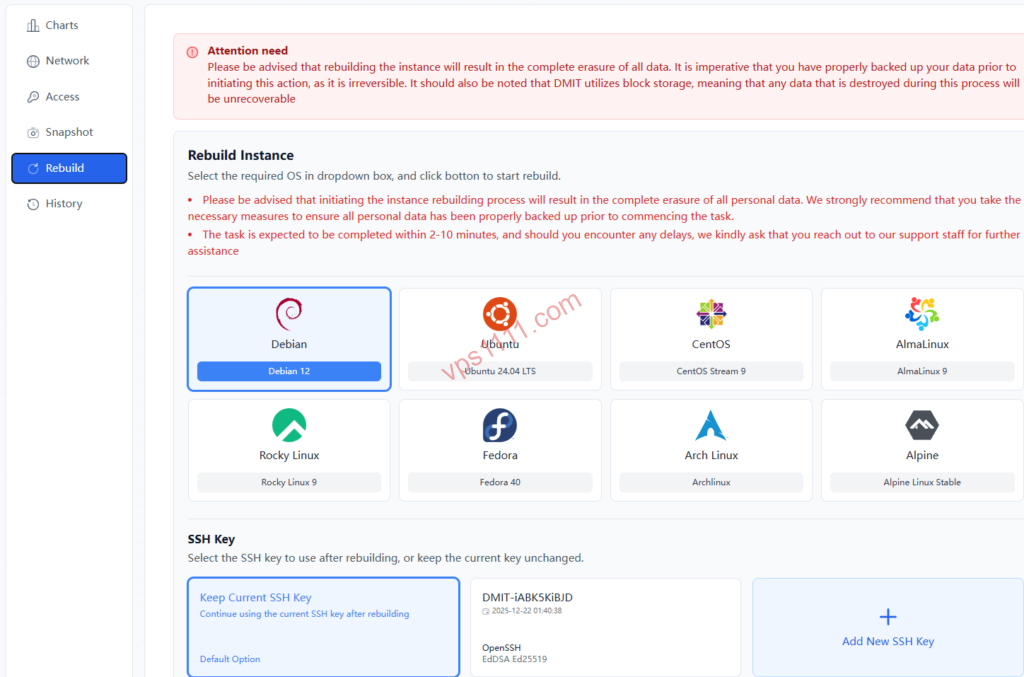
2. Reinstall: Backup is the Only Truth
- High-Risk Warning: Reinstalling the OS will physically wipe all data on the disk! Before proceeding, you must back up important data locally or to object storage.
- Where is the Root Password? After the reinstallation is complete, the new root password is not only sent to your registered email but is also displayed long-term in the “General” tab of the panel. Don’t panic if you close the page; just wait for the reinstallation progress bar to finish.
3. Root/Admin Password: The Correct Way to Reset
If you forget your password, you can use this function to reset it. However, an expert reminder:
- For KVM / Xen architecture machines, you must first Shutdown the VPS, then click reset password, and then power it back on for the change to take effect. OpenVZ architecture usually does not require a shutdown.
- If you have installed a custom OS image with full disk encryption, the panel’s password reset will likely fail, and forcing it may result in the system becoming completely inaccessible.
III. Virtualizor: The Modern Choice for Legacy and Emerging Providers
Virtualizor is currently the absolute mainstream in the market. Whether it’s a reputable veteran like SpartanHost (operating steadily for over 5 years) or new plans from RackNerd, they all use it.
1. The Pitfall of Cloud-init Password Injection
Virtualizor supports entering a custom root password or SSH key directly during reinstallation, which is automatically injected via Cloud-init technology during the first boot.
- Pitfall Guide: While this injection method is secure, if the virtual machine’s network is unstable during reinstallation, Cloud-init may fail to pull metadata, causing the injection to fail. You will then find that the password you set does not work.
2. Rescue Mode: Unbricking Can Also Lead to “Bricking”
When the system completely crashes, Rescue Mode boots your VPS using a tiny, clean Linux environment.
- Operational Risk: After logging into the rescue system, you need to manually
mountthe original system’s hard drive (e.g.,/dev/vda1) to recover data. If you don’t understand Linux disk commands, entering random instructions can easily damage the original partition table, making the system impossible to recover.
3. VNC Console: The Truth About Black Screens and Kernel Panics
Configured the wrong SSH port or locked yourself out with a firewall? Click VNC. It’s equivalent to connecting a physical monitor to the server.
- Pitfall Guide: If the Linux kernel crashes (Kernel Panic), the VNC screen will display clear panic error codes, not just a black screen.
- If the VNC opens to a pure black screen, it is usually because the bootloader (GRUB) is damaged and failed to start, the VNC service is misconfigured, or your browser does not support the HTML5 client protocol.
- If the provider’s VNC port (usually a non-standard port) is physically blocked by regional firewalls, you won’t be able to connect even after clicking the button.
4. CPU at 0% but High Load? Don’t Blame the “Noisy Neighbor” Yet
Seeing 0% CPU usage on the Dashboard but a Load average over 10? A beginner’s first reaction is: there must be a “Noisy Neighbor” on the Dedicated Node hogging all the resources!
- Underlying Truth: 90% of the time, this is because processes in your own system have entered an Uninterruptible Sleep state (D-state)! For example, your program might be frantically reading/writing to a disk with bad sectors, or a process is waiting for local I/O response. Only when your own system has no heavy I/O processes but
iowaitremains maxed out is it likely that a neighbor is hogging the underlying storage I/O resources.
IV. 2026 Hands-on Recommendations and Real Data Exposure
If you want to practice these panel functions yourself, here are two highly representative options selected for you.
💡 Expert Objective Pitfall Guide:
- RackNerd Honest Review: Overselling is relatively significant; disk I/O performance and network stability during Prime time can be poor. Additionally, the provider’s TOS (Terms of Service) is very strict and does not support easy refunds. Not suitable for Web Hosting; only recommended for geeks to practice, run scripts, or host monitoring probes.
- SpartanHost Network Truths: Please note that only the Los Angeles data center features China Unicom AS4837 optimization and 20G DDoS protection, making Prime time network relatively stable. If you choose the Seattle data center, latency to mainland China will be 30-50ms higher, with significant routing issues for China Unicom and China Mobile. Choose carefully based on your target audience.
- Debunking the Streaming Myth: A Native IP absolutely does not guarantee unlocking Netflix or Disney+! Streaming giants have long since blocked entire ASN broadcast ranges of major data centers (including RN and Spartan). Do not rely on luck.
V. Scenario-based FAQ (Expert Troubleshooting Q&A)
1. Why does my SSH port query still show 22 when I can’t connect?
Many beginners copy the cat /etc/ssh/sshd_config | grep Port command from the internet to check the provider’s default port. This is wrong! This command will also pull up commented-out default lines (like #Port 22) in the configuration file, leading you to believe the port is still 22.
The correct command is: grep -E '^Port' /etc/ssh/sshd_config. This will only match active, non-commented lines. If you can’t connect, log in via VNC and use the correct command to check.
2. The panel shows I’ve exceeded my bandwidth, but vnstat says I haven’t. Is the panel stealing data transfer?
It’s not “stealing,” nor is it just “protocol overhead” (vnstat also reads data from the underlying network card, which includes Layer 2/3/4 headers). There are three core reasons for the discrepancy:
- Different Calculation Methods: Most panels calculate “bidirectional traffic” (upload + download), while your application often only has heavy traffic in one direction.
- Reset Cycle Issues: vnstat statistics may reset after an unexpected hard reboot or OS reinstallation, while the panel records absolute values from the billing system.
- Billing Cycle Time Difference: Your vnstat may not be aligned with the provider’s monthly billing date.
3. The IP is too slow at night or is blocked. Can I change the IP for free in the panel?
This depends entirely on the provider’s policy.
Mainstream cloud providers like Vultr and DigitalOcean allow you to destroy and rebuild or change IPs via the panel. However, for budget-oriented data centers (like RackNerd special offers), self-service IP changes are usually not allowed. If the IP is blocked, you must submit a support ticket and pay a fee to be assigned a clean new IP. Sluggishness during Prime time is a physical characteristic of standard direct routes; the panel cannot resolve congestion in the data center’s upstream routing.