


Core Summary: In 2026, server uptime remains the definitive benchmark for VPS service quality. Unexpected downtime doesn’t just drain traffic; it severely damages your site’s search engine trust score. This guide provides a hardcore breakdown into deploying the open-source monitoring powerhouse Uptime Kuma with a single Docker Compose command. We cover data center selection strategies, hardened container orchestration, instant Telegram alert integration, and critical database backup practices to prevent data loss.
In the VPS ecosystem, whether you’re running a high-traffic site, executing automated compliance scraping scripts, or maintaining a personal blog, server downtime is every webmaster’s worst nightmare.
While numerous cloud monitoring platforms exist (like UptimeRobot), their free tiers often suffer from low polling frequencies (typically 5-minute intervals) and limited geographic nodes. In 2026, Uptime Kuma has emerged as the premier open-source, self-hosted monitoring solution. It enables precise, second-level polling for HTTP(s), TCP, Ping, and Docker container states, while integrating seamlessly with dozens of alert channels like Telegram and Webhooks. It is now the absolute standard for advanced Linux Ops professionals managing critical digital infrastructure.
🏗️ Phase 1: Infrastructure Selection — Where Should You Host Your Monitor?
When deploying a monitoring stack, the most critical principle beginners overlook is simple: the monitoring node’s network must be significantly more stable than the targets it tracks.
Deploying your monitor on a heavily oversold, packet-dropping idle server will flood you with false positives from network jitter, quickly leading to alert fatigue. Based on extensive real-world testing, we recommend provisioning your primary monitor on a premium-tier VPS with excellent global peering and a proven 99.9%+ uptime track record:
- Primary Recommendation: CN2 GIA Premium Routing. For example, a Los Angeles-based CN2 GIA node delivers exceptionally low latency and zero congestion to global destinations, ensuring every TCP probe accurately reflects your target server’s true status.
- Alternative Recommendation: AS4837 Optimized Routing. Known as the bandwidth king for its exceptional value, AS4837 maintains excellent connectivity even during prime time, making it ideal for budget-conscious webmasters requiring high-frequency monitoring.
🛠️ Phase 2: Secure, Standardized Deployment via Docker Compose
To guarantee a streamlined deployment, persistent data storage, and seamless future upgrades, we will use a modern Docker container architecture with production-grade security hardening.
1. System Environment Preparation
On a clean Ubuntu 24.04 or Debian 12 installation, begin by ensuring the latest Docker Engine is installed.
# Install official Docker environment
curl -fsSL https://get.docker.com -o get-docker.sh
sudo sh get-docker.sh
2. Drafting the Hardened Docker Compose File
Create a dedicated working directory named uptime-kuma and initialize a new docker-compose.yml configuration file:
mkdir uptime-kuma && cd uptime-kuma
nano docker-compose.yml
Paste the following architect-grade standardized configuration. Note: We explicitly bind the port to 127.0.0.1 and disable container privilege escalation via security_opt to prevent the admin panel from being exposed to the public internet and targeted by brute-force attacks.
version: '3.8'

services:
  uptime-kuma:
    image: louislam/uptime-kuma:latest
    container_name: uptime-kuma
    volumes:
      - ./data:/app/data
    ports:
      # Force bind to localhost loopback; essential security for production
      - "127.0.0.1:3001:3001"
    restart: always
    security_opt:
      # Best-practice syntax to prevent kernel-level privilege escalation
      - no-new-privileges
3. Launching the Service & Reverse Proxy Integration
Start the container in detached mode using the modern Docker Compose command:
sudo docker compose up -dSince we restricted access to 127.0.0.1 in the configuration, you must use a reverse proxy tool like Nginx Proxy Manager (NPM) or Caddy. Point your designated monitoring domain (e.g., status.yourdomain.com) to the host’s 3001 port and enforce HTTPS with a Let’s Encrypt certificate.
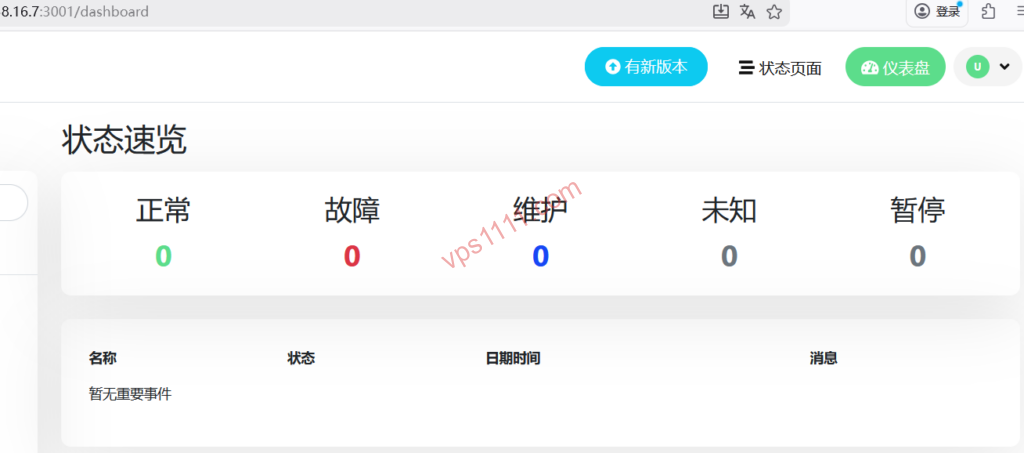
Once configured, navigate to your domain to access the setup wizard and create a highly secure administrator account.
📋 Phase 3: Mainstream VPS Monitoring Strategies & Configuration Reference
Depending on your VPS asset types and business criticality, you must tailor polling frequencies and detection protocols to avoid inadvertently triggering rate limits or simulating a DDoS/CC attack on your target servers.
📊 Recommended Monitoring Configurations for Common VPS Routes (Essential for Ops)
| Target Route Type | Recommended Protocol | Polling Frequency | Retry Count | Use Case |
|---|---|---|---|---|
| CN2 GIA / Premium Direct Peering | HTTP(s) Status Code | 30 – 60s | 3 | Core Web Hosting / Production APIs |
| AS4837 Optimized | TCP Port (22/443) | 60s | 2 | Primary Nodes / Personal Blogs |
| Standard BGP Data Center | ICMP (Ping) | 120s | 1 | Test Servers / Cold Storage Nodes |
🔔 Phase 4: Configuring Instant Telegram Alert Notifications
Uptime Kuma’s true strength lies in its extensive notification ecosystem. For most VPS administrators, a Telegram Bot offers the fastest response times and lightest footprint.
- Obtain Bot Token: Search for
@BotFatherin Telegram, send/newbot, follow the prompts to create your bot, and securely record the API Token. - Retrieve Chat ID: Message
@userinfobotto obtain the Chat ID for your personal account or dedicated monitoring group. - Bind in Dashboard: Log into Uptime Kuma, navigate to
Settings->Notifications->Setup Notification. SelectTelegramas the type and input your Token and Chat ID. - Critical Detail: Always enable
Auto-Resolve. This automatically updates the alert status once your server recovers, keeping your notification feed clean and actionable.
💡 vps1111 Pitfall Guide: Architect-Level Deep Optimization
🔍 Production-Grade Maintenance Details for Uptime Kuma:
- Critical Database Backup Strategy: Uptime Kuma defaults to a single-file SQLite database. You must configure a Cron job to automatically compress and offload
./data/kuma.dbto external object storage (e.g., AWS S3 or Cloudflare R2) daily. If your monitor’s host drive fails, your historical SLA data will be permanently lost without this. - False Positive Troubleshooting: If you suddenly receive mass probe failure alerts, do not immediately reboot your production servers! First, verify whether your monitoring node itself is experiencing a major international routing blockage. Use external ping tools for cross-verification.
- Docker Container-Level Monitoring: Beyond tracking IPs and domains, Kuma can mount the host’s
docker.sockto directly monitor the runtime status of other local Docker containers. This highly underrated feature is frequently overlooked by beginners. - Recommendation Rating: ⭐⭐⭐⭐⭐ (Currently the most robust self-hosted SLA monitoring dashboard)
Frequently Asked Questions (FAQ)
Does Uptime Kuma consume significant server resources? Can it run on a 512MB VPS?
Minimal. Built on Node.js, Uptime Kuma typically consumes around 100MB of RAM when idle or monitoring fewer than 50 nodes. It runs perfectly fine on a 512MB VPS. However, if you scale to hundreds of nodes with aggressive 20-second polling intervals, we recommend at least 1GB of RAM and enabling Swap to prevent OOM (Out of Memory) crashes.
Why do I keep getting frequent “Socket ETIMEDOUT” false positives after setting up monitoring?
This usually indicates your target server is online, but your monitoring node suffers from poor routing, causing TCP/HTTP request congestion or packet loss. Two solutions: increase the retry count to 3–5, or migrate your monitor to a more stable network route like AS4837 or CN2 GIA.
How do I secure the Uptime Kuma dashboard against brute-force attacks?
Never expose port 3001 directly to the public internet. Follow the best practices outlined here: map the port to 127.0.0.1:3001:3001 in Docker, deploy Nginx or Caddy as a reverse proxy on the host, and enforce HTTPS. Additionally, configure a complex, 16+ character password in the Kuma admin panel to achieve enterprise-grade security.