


Core Summary: In 2026, relying solely on your VPS provider’s “system snapshots” leaves your data completely exposed. A data center fire, drive failure, or a simple typo can wipe out your site in seconds. This guide breaks down exactly how to leverage free Google Drive or OneDrive storage, combined with the Rclone CLI or cPanel plugins, to build a zero-cost, fully automated, and resilient off-site disaster recovery system for your databases and web files. We cover critical pitfalls: Token refresh mechanisms, avoiding API bans, single-file encrypted archiving, preventing table locks, and securing credentials from process leaks.
Let’s be honest: running a server in 2026 without proper backups, or blindly trusting your host’s “system snapshots,” is a massive risk. Whether you’re on BandwagonHost, SpartanHost, or RackNerd, skipping off-site disaster recovery is just gambling with your uptime. Data center incidents, hardware failures, provider exit scams, or a mistyped rm -rf /* can instantly erase years of work on your WordPress blog or DTC e-commerce site. While enterprise-grade solutions like AWS S3 or Alibaba Cloud OSS are rock-solid, they’re overkill for independent webmasters. The complex setup, egress bandwidth fees, and pay-as-you-go storage costs quickly add up.
You don’t need to spend a dime on backups. By leveraging your existing free Google Drive (15GB) or OneDrive (1TB via Office 365/E5), paired with a few lines of automation scripts or a control panel plugin, you can deploy a zero-cost, fully automated, and bulletproof off-site data vault. Once configured, it’s a “set it and forget it” system. Even if your server completely fails, you can be fully restored in under an hour. If you’re still searching for a reliable backup solution, this comprehensive, step-by-step guide will give you the exact playbook for VPS survival.
In this guide, we’ll break down exactly how to automatically sync your MySQL/MariaDB databases and web source files to Google Drive and OneDrive using either the command line or a control panel environment. Beyond just step-by-step instructions, we’ll expose the hidden pitfalls and technical nuances to guarantee your data remains completely secure and recoverable.
📊 Cloud Storage Backup Strategies: A Side-by-Side Comparison
Before diving into the setup, let’s review the available methods. The comparison table below outlines the learning curve and practical outcomes for each approach.
🔥 Cloud Database Backup Solutions Compared: Experts Highly Recommend Rclone
| Backup Solution | Learning Curve | Security & Encryption Support | Flexibility & Scheduling | Best For |
|---|---|---|---|---|
| Rclone + Crontab Script | ⭐ High (Requires Linux) | Advanced stream encryption, comprehensive | Extremely High (Custom intervals, unlimited structure) | Hardcore enthusiasts / Independent VPS |
| cPanel/1Panel Cloud Plugin | ⭐ Low (GUI-based) | Requires archive password, vulnerable to brute-force | Moderate, limited by panel version settings | Non-technical webmasters |
| UpdraftPlus (WP Plugin) | Zero-config, one-click binding | Weak (Relies on WP’s native security) | Limited to specific WordPress directories | Pure WP beginners |
If you’re running a light-to-medium WordPress blog or an e-commerce site and want a permanent solution with full control over your data pipeline, skip the bloated plugins. The Rclone + automation script combo is the undisputed gold standard.
🧠 Core Architecture & Prerequisites
Many webmasters have tried scripts that upload files directly to cloud storage, only to see them fail after a few days. This usually comes down to a few critical cloud infrastructure rules. To build a reliable system, you need to understand the underlying mechanics.
OAuth 2.0 Authorization & Token Refresh Mechanism:
When you authorize an application (like Rclone or a cPanel plugin) to access your Google Drive, the service doesn’t store your password. Instead, it issues an Access Token and a Refresh Token. Access Tokens typically expire within hours. Most backup failures happen because the tool fails to automatically handle the Refresh Token, causing a deadlock. The Rclone CLI and reputable control panel plugins excel here because they feature robust, built-in Token renewal logic.
API Rate Limits:
Never attempt to sync thousands of tiny website files (images, cache fragments, code) directly to Google Drive or OneDrive! Cloud APIs enforce strict request frequency limits. Running a raw directory sync will trigger a rate limit within minutes, resulting in a temporary API ban.
The Fix: Always archive your web files and database into a single .tar.gz package locally first, then upload that single file.
“Full Snapshots” vs. “Database Incrementals”:
Don’t try to run real-time binary log (Binlog) incremental syncs on free cloud drives. That architecture belongs in enterprise multi-cloud setups. Our approach is simple: schedule a daily “full snapshot” archive during off-peak hours, name it by date, upload it, and automatically purge older backups. Keep it simple. For personal sites, this easily meets standard RTO (Recovery Time Objective) requirements.
💡 vps1111 Pitfall Guide (Risks of Free Cloud Storage):
- Storage Limit Warning: Google Drive’s free tier caps at 15GB. Use the
findcommand to automatically purge backups older than 7 or 15 days. While OneDrive E5 offers massive space, low usage or treating it purely as cold storage can trigger Microsoft’s risk controls, leading to data wipes or account suspension. Always implement multi-cloud distribution. - Table Lock Black Hole: Running
mysqldumpon a high-concurrency site can cause table locks, briefly taking your site offline. Always include the--single-transactionflag in your export command to bypass this critical issue! - Data Privacy & Security: Once backups hit public cloud storage, a compromised cloud account exposes your entire database. Strongly recommend encrypting archives with
opensslor using strong ZIP passwords before uploading!
🛠️ Phase 1: The Hardcore Geek’s Choice — Rclone Mount & Fully Automated Stream Sync
If you have direct SSH access and run LNMP or Docker without a control panel, Rclone will completely streamline your workflow. Known as the “Swiss Army knife for cloud storage,” Rclone interacts directly with major cloud APIs via the command line.
1. One-Click Rclone Core Installation
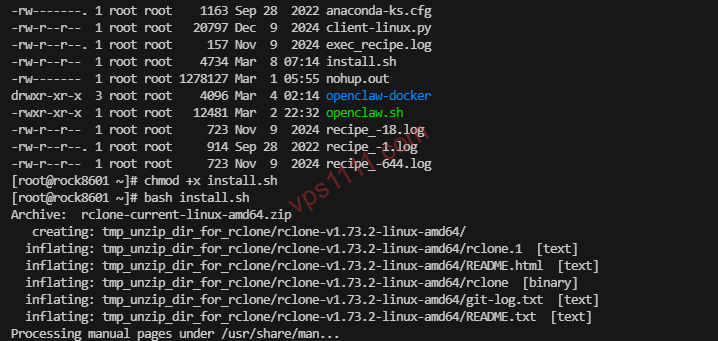
Run the official installation script. It delivers rock solid stability on both Ubuntu and CentOS. Execute this in SSH:
curl https://rclone.org/install.sh | sudo bashOnce installed, verify the installation by running rclone version to confirm the output.
2. Configure Google Drive or OneDrive Authorization
This is where most beginners get stuck: VPS instances are typically headless servers without a GUI, so you can’t just open a browser to log in. We’ll use your local machine as a bridge.
Step-by-Step: Enter the interactive configuration menu:
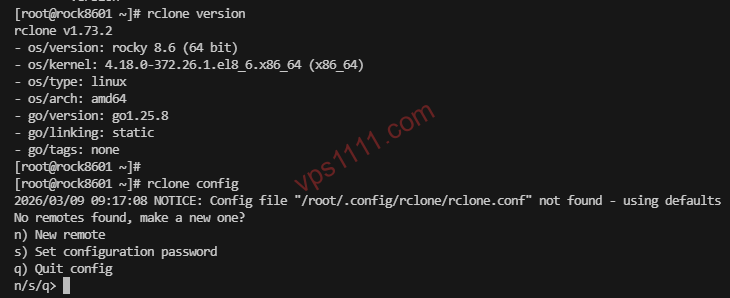
rclone config- New remote: Enter a connection name, e.g.,
gdriveoronedrive. - Storage Type: The list is long. For Google Drive, enter the corresponding number (usually around
18). For OneDrive, it’s typically31(verify against the latest prompt). - Client ID / Client Secret: Press Enter to skip and use Rclone’s default public API. For maximum stability, it’s highly recommended to later create your own credentials in the Google Cloud Console (advanced).
- Scope: Select
1(full read/write access). - Use auto config?: The system will ask if you want to use auto-config. Crucial: Select
N(No), since we’re on a headless server!
The terminal will display a prompt:
For this to work, you will need rclone available on a machine that has a web browser available.
This means you need to download the desktop version of Rclone on your local PC, open a terminal/CMD, and run the exact command it provides: rclone authorize "drive" "xxxxxxxx".
A browser window will pop up. Log into your cloud account, grant permission, and the terminal will return a lengthy, critical Token JSON string.
Copy this entire string, paste it back into your VPS terminal at the authorization prompt, and the mount will complete.
3. Build the Automation Core: The Master Shell Script
With Rclone ready, we need to instruct the server: what to archive, where to store it temporarily, and how to push it to the cloud.
Create a dedicated script directory under /root:
mkdir -p /root/scripts
mkdir -p /root/backup_temp
nano /root/scripts/auto_backup.sh
Paste the following production-grade script, updating the variables to match your setup. (Note: This uses environment variables for credentials, a security best practice that prevents database passwords from leaking via ps process monitoring):
#!/bin/bash
# ==========================================
# Automated Database & Web Source Backup to Google Drive
# ==========================================

# 1. Variable Definitions (Replace with your own data)
DB_USER="root"
# Core Security Standard: Pass password via environment variable to prevent ps -ef interception and suppress CLI warnings
export MYSQL_PWD="Your_Database_Password"
DB_NAME="Your_Database_Name"

# If you want to backup website files, enter the full path
WEB_DIR="/var/www/html"
# Rclone remote name and cloud storage path
RCLONE_REMOTE="gdrive:ServerBackup"
# Temporary storage directory (must be created beforehand)
BACKUP_DIR="/root/backup_temp"

# Generate date/time tag
DATE=$(date +"%Y%m%d_%H%M%S")
DB_FILE="$BACKUP_DIR/db_$DB_NAME_$DATE.sql"
ARCHIVE_FILE="$BACKUP_DIR/full_web_backup_$DATE.tar.gz"

echo "[Start] $(date) - Triggering large-scale disaster recovery backup"

# 2. Export Database (Pitfall avoidance: add --single-transaction and --routines)
echo "[In Progress] Dumping MySQL database..."
mysqldump -u$DB_USER --single-transaction --routines --triggers $DB_NAME > $DB_FILE

# 3. Archive website files and database dump
echo "[In Progress] Compressing files into high-ratio tar.gz package..."
tar -czvf $ARCHIVE_FILE $WEB_DIR $DB_FILE

# 4. Remote upload to Google Drive
echo "[In Progress] Uploading to cloud storage via Rclone..."
rclone copy $ARCHIVE_FILE $RCLONE_REMOTE

# 5. Local disk space protection: Remove temp files and old backups (keep local 3 days for fast restore)
echo "[Cleanup] Clearing server residual traces..."
rm -f $DB_FILE
find $BACKUP_DIR -name "*.tar.gz" -type f -mtime +3 -exec rm {} \;

echo "[Complete] Backup and upload lifecycle finished!"
Save the file and grant it executable permissions:
chmod +x /root/scripts/auto_backup.shRun a manual test immediately: /root/scripts/auto_backup.sh. Watch the terminal output for errors, then check your Google Drive to confirm the new file appears.
4. Schedule with Crontab for Fully Unattended Operation
Run:
crontab -eAppend the following line at the bottom (this schedules the backup for 3:30 AM daily, during the lowest traffic window):
30 3 * * * /root/scripts/auto_backup.sh > /root/scripts/backup.log 2>&1You’re done. This zero-to-deployment, hand-crafted setup is the most efficient and lightweight approach. The resource overhead is so minimal it won’t cause any noticeable server fluctuations.
🖥️ Phase 2: The Non-Technical Webmaster Route — One-Click cPanel Mount
Not everyone wants to wrestle with a terminal. If your server already runs cPanel (or 1Panel), the official free/paid plugins have already bridged the gap, making it incredibly beginner-friendly.
Step 1: Locate the Certified Plugin in the App Store
Navigate to your cPanel backend, search for “Google Drive” or “OneDrive” in the [Software Store], and install the official backup plugin.
Step 2: Browser-Level Authorization
After installation, click “Settings”. Thanks to cPanel’s built-in web proxy, clicking the authorization button will redirect you to a login page. Sign into your target Google account, click “Allow”, and the Token will automatically bind to your server.
Step 3: Configure a Strict Scheduled Task
Go to [Scheduled Tasks] in the left menu. This is where operational precision matters:
- Task Type: Select “Backup Database” or “Backup Website”. We recommend creating two separate tasks.
- Execution Cycle: Set to 4:00 AM daily. By this time, even international e-commerce traffic in Europe and the US has hit its nightly low.
- Backup Destination: From the dropdown, select your newly authorized Google Drive or OneDrive!
- Retain Latest: Crucial: Set to “7” or “15” copies!!! Never leave it at 0 or blank. Without a retention limit, daily backups will eventually max out your cloud storage, triggering service suspension.
After submitting, immediately click “Execute” in the task list. Check the logs for “Upload Successful” to confirm the pipeline is fully operational.
🔄 Disaster Recovery Protocol — How to Salvage Data After a Crash?
A backup guide without a recovery plan is useless. If your server fails and you provision a new one, how do you restore your data?
Using the Rclone Method:
Reconfigure rclone config on the new server. Instead of a complex upload process, simply pull the data back locally:
rclone copy gdrive:ServerBackup/full_web_backup_20261111.tar.gz /root/restore/Once downloaded, extract the archive and force-import the database using the standard CLI command:
mysql -u root -p your_new_empty_database_name < /root/restore/db_xxxx.sqlUsing the cPanel Method:
After provisioning a fresh server and reinstalling cPanel, install the same backup plugin, re-authorize your cloud account, and navigate to “Backup Management”. Simply select the desired date’s cloud backup and click [Restore]. This streamlined GUI experience significantly reduces stress for beginners.
❓ Frequently Asked Questions (FAQ)
Will uploading massive backup archives consume so much bandwidth and CPU that it crashes my site?
This is a valid concern. mysqldump and tar compression will indeed cause CPU spikes. On a 1-core 1GB lightweight server, use nice -n 19 tar -czvf ... in your script to lower the process priority, ensuring web requests take precedence. Always schedule backups during off-peak hours when bandwidth is idle.
My cloud drive only has 15GB free, but my site data totals 20GB. What now?
This is a hard storage limit. You have three options: First, purchase a shared enterprise OneDrive account for massive capacity. Second, modify the Rclone script to exclude heavy media directories (add --exclude "wp-content/uploads/*"), backing up only the database, since core assets are usually in text/configs. Third, mount multiple Google accounts and write a distribution script.
Will Google flag my cloud backups as API abuse or suspicious activity?
As long as you strictly follow the scheduled snapshot principle (e.g., uploading 1-2 large archives per day), you won’t be flagged. The only thing cloud APIs penalize is sending hundreds of rapid, tiny file sync requests per second (which is exactly why we emphasize .tar.gz packaging). Follow the guidelines, and you’ll maintain green-light status indefinitely.
How do I run the host backup script if my MySQL is deployed in a Docker container?
You only need to adjust one line. Instead of running mysqldump directly on the host, execute it through Docker’s exec layer: docker exec container_name mysqldump -uroot -ppassword database > backup.sql. (Note: Inside the container, it’s still recommended to use the MYSQL_PWD environment variable to prevent credential leaks). The rest of the archiving and Rclone upload pipeline remains completely unchanged.