


Let’s be honest: in the 2026 VPS landscape, cloud providers are still drowning us in marketing hype. Many users are holding onto a few grandfathered plan snagged during flash sales, or running 1-core/1GB instances for web hosting. But this raises a critical issue: provisioning a server is easy, but maintaining it is where the real headache begins.
This is especially true with budget providers offering spinning rust storage or fly-by-night host that could vanish overnight. Their default OS images are often bloated with junk logs, and even basic DNS configurations are broken, causing environment setups to stall indefinitely.
Skipping the fluff, we’re breaking down the exact one-click Linux maintenance scripts veteran sysadmins run immediately after provisioning in 2026. I’ll show you how to safely purge junk files, permanently lock DNS settings on modern distros, and debunk a common beginner myth: can you actually monitor CPU temperature on a VPS?
🥇 Core Maintenance Scripts Overview (2026 Optimized Edition)
For a clear comparison, I’ve compiled the most essential maintenance categories used in daily operations. Refer to the breakdown below:
🧠 Hardcore Practice: Three Core Maintenance Scenarios & One-Click Scripts
⚠️ Critical Prerequisite: All one-click scripts below modify system network configurations and package manager caches. They must be executed as the
rootuser, or prefixed withsudoto grant administrative privileges.
1. Deep Junk Cleanup: Don’t Let Orphaned Logs Consume Your Grandfathered Plan
Many beginners provision a 10GB storage instance, deploy a web stack, and within days hit a No space left on device error. This is almost always caused by the default journalctl logs and package manager caches ballooning daily.
For these low-end VPS that easily become idle servers, you need this targeted cleanup routine. I’ve explicitly separated Debian-based and RHEL-based commands to prevent package manager conflicts.
✅ Debian / Ubuntu Dedicated Cleanup Script:
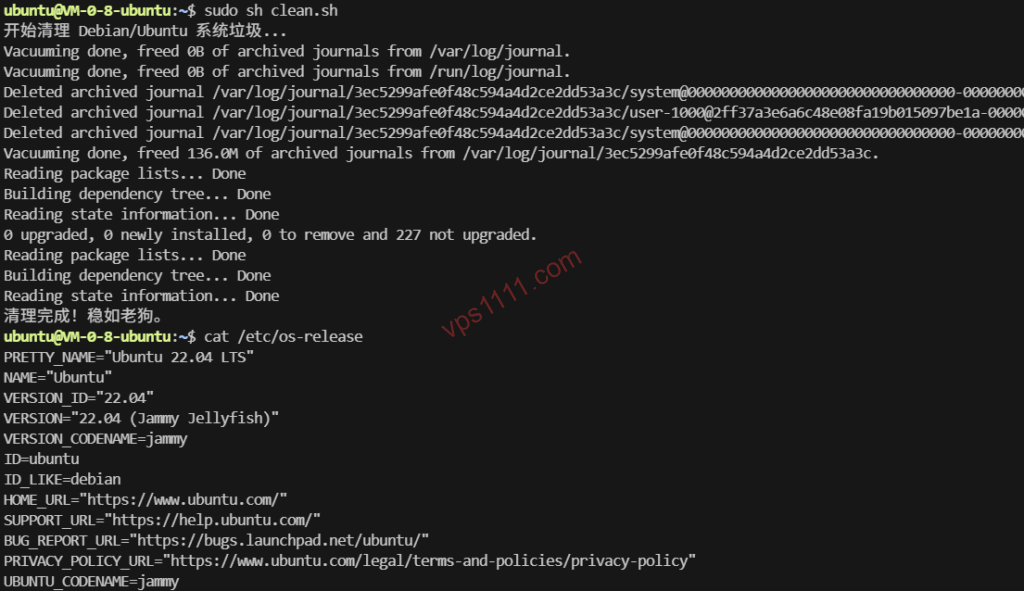
#!/bin/bash
echo "Starting Debian/Ubuntu system cleanup..."
if [ "$(id -u)" -ne 0 ]; then echo "Error: Must be executed with root privileges!"; exit 1; fi

# Clean system logs, retain 7 days (balances troubleshooting and space recovery)
journalctl --vacuum-time=7d
# Clean unused dependencies and package cache
apt autoremove -y && apt clean -y && apt autoclean -y
# Only delete user cache files not accessed in 7 days to prevent accidental deletion of core configs
find /root/.cache/ -type f -atime +7 -delete 2>/dev/null
find /home/*/.cache/ -type f -atime +7 -delete 2>/dev/null
echo "Cleanup complete! Rock solid stability."
(Note: Before running apt autoremove, if you have manually compiled and installed core dependencies, review the removal list first to avoid accidental deletion.)
✅ CentOS / RHEL / AlmaLinux Dedicated Cleanup Script:
#!/bin/bash
echo "Starting CentOS/RHEL system cleanup..."
if [ "$(id -u)" -ne 0 ]; then echo "Error: Must be executed with root privileges!"; exit 1; fi

journalctl --vacuum-time=7d
# Smart adaptation for yum/dnf package managers
if command -v dnf >/dev/null 2>&1; then
    dnf autoremove -y && dnf clean all
else
    yum autoremove -y && yum clean all
fi
find /root/.cache/ -type f -atime +7 -delete 2>/dev/null
find /home/*/.cache/ -type f -atime +7 -delete 2>/dev/null
echo "Cleanup complete!"
2. Force DNS Configuration: Fix Network Drops from fly-by-night host Providers
You’ve likely experienced this bizarre scenario: the server responds to ping, but when you run wget to fetch a script or execute apt update, it hangs indefinitely at Resolving host.... This happens because some budget providers ship hypervisors with severely misconfigured default DNS resolvers.
⚠️ Emergency Workaround: If DNS resolution is completely broken and you can’t even load web pages or fetch scripts via
wget, run this command first to restore basic resolution before executing the full script below:echo "nameserver 1.1.1.1" | sudo tee /etc/resolv.conf > /dev/null
Why You Shouldn’t Just Use chattr +i to Lock It?
On modern mainstream Linux distributions in 2026 (e.g., Ubuntu 20.04+, Debian 11+), DNS is natively managed by the systemd-resolved service. In this setup, /etc/resolv.conf is merely a symlink pointing to a tmpfs in-memory filesystem. Forcing an immutable lock on it will trigger errors and completely break resolution! You need this architecture-aware script:
✅ Smart DNS Lock Script (Universal Architecture Support):
#!/bin/bash
echo "Forcing DNS modification and lock..."
if [ "$(id -u)" -ne 0 ]; then echo "Error: Must be executed with root privileges!"; exit 1; fi

# Check if modern systemd system
if pidof systemd > /dev/null; then
    # Safely modify systemd-resolved core config (handles already uncommented cases)
    sed -i 's/^#*DNS=.*/DNS=1.1.1.1 8.8.8.8/' /etc/systemd/resolved.conf
    sed -i 's/^#*DNSStubListener=.*/DNSStubListener=yes/' /etc/systemd/resolved.conf
    systemctl restart systemd-resolved
    # Force symlink to prevent malicious DHCP overrides
    ln -sf /run/systemd/resolve/stub-resolv.conf /etc/resolv.conf
    echo "DNS configured successfully! Permanent on systemd systems, no underlying lock files needed."
else
    # Adapt for Alpine or legacy non-systemd systems
    chattr -i /etc/resolv.conf 2>/dev/null
    cat > /etc/resolv.conf
3. Monitoring Temperature & Hardware Status: Debunking Common Myths!
This is one of the biggest knowledge gaps across the web. Many beginners follow outdated tutorials and insist on installing lm-sensors to check CPU temperatures on their low-end VPS.
Here’s the harsh reality from veteran sysadmins: 99% of standard VPS instances cannot report actual CPU temperatures!
Because you’re running a virtualized instance (KVM / OpenVZ / LXC), low-level hardware sensor data is completely isolated by the physical hypervisor. Only bare-metal dedicated servers, or highly customized KVM setups with explicit hardware passthrough, will return accurate readings via the sensors command.
If your VPS frequently freezes or crashes, don’t blame the temperature. There’s a 99% chance the node is severely oversold, or you’re sharing a hypervisor with a noisy neighbor running unauthorized crypto miners.
✅ The Real Alternative: Instantly Check Resource Contention (CPU Steal):
Forget temperature. What you actually need to monitor is Steal Time (CPU cycles stolen by the hypervisor or neighboring VMs). Simply run:
topLocate the %Cpu(s) line in the header output and closely monitor the st (Steal Time) value.
Note: This metric only applies to full virtualization architectures like KVM/Xen. OpenVZ/LXC containers share the host kernel and will not report accurate
stvalues.
Monitor the top output continuously for 5–10 minutes. If the average st consistently exceeds 5%, the node is likely oversold. If it stays above 10%, it’s severely oversold! At that point, running scripts won’t help. Your best move is to back up your data immediately and prepare to migrate away and request a refund.
If you want to quickly identify which process is draining your resources, here’s a minimal troubleshooting command:
# Instantly list the top 10 CPU-consuming processes
ps aux --sort=-%cpu | head -11
🛒 Pitfall Avoidance & Daily Operations Summary
Whether you’re running a premium optimized-route server or a low-end VPS, the core maintenance logic remains unchanged: keep storage clean, ensure reliable DNS resolution, and actively monitor abnormal load spikes.
💡 vps1111 Pitfall Guide:
- Exercise caution with unknown one-click scripts: Never blindly pipe remote scripts into bash via
curl -sSL http://xxx | bash. Always inspect the source code in your browser first to avoid malware injection or hidden crypto-mining backdoors. - Don't delete logs recklessly: If you run production web services,
journalctlis often your only lifeline during a crash. As demonstrated, retain at least 7 days of logs. Never wipe them completely. - The temperature monitoring myth: Stop trying to install temperature sensors on low-end VPS. Veteran admins rely on open-source monitoring tools (like Uptime Kuma) to track
Load AverageandSteal Timeinstead.
Final Takeaway: Don’t get distracted by flashy tech jargon. Mastering these three optimized core scripts will give your VPS rock solid stability. Save the time you’d waste tinkering with low-level configs and focus on optimizing your DTC e-commerce site or core business. That’s the real value of server management!
❓ FAQ: High-Frequency Linux VPS Maintenance & Troubleshooting Questions
Q1: Why does running the sensors command on my VPS return "no sensors found"?
A1: Because you’re running a virtualized instance (KVM or LXC). The underlying physical hardware, including motherboard and CPU thermal sensors, is completely isolated by the host’s security architecture. This is expected behavior and requires no troubleshooting. To accurately assess server load, simply use the top command to monitor Load Average and st (Steal Time).
Q2: Will running the cleanup scripts affect my web stack (e.g., Nginx/MySQL)?
A2: The cleanup scripts provided here are highly secure. apt autoremove only removes orphaned packages that are no longer required as dependencies, while journalctl --vacuum-time=7d strictly purges system logs older than 7 days. They will never touch active service configurations, database files, or web directory data. Web hosting users can run them safely.
Q3: I manually edited /etc/resolv.conf, but why does the DNS revert after a server reboot?
A3: On modern Linux distributions (e.g., Ubuntu 20.04+), network resolution is dynamically managed by the systemd-resolved service, which overwrites resolv.conf on every boot. Directly editing this file is ineffective. Use the "Smart DNS Lock Script" provided in this guide to permanently configure resolution by modifying the underlying /etc/systemd/resolved.conf file.