


TL;DR / Executive Summary: Self-hosting a Librespeed speed test page is the definitive standard for verifying a VPS’s actual network quality, effectively cutting through provider bandwidth marketing claims. This guide breaks down exactly how to deploy Librespeed via Docker in under 5 minutes, even with zero prior experience. With just a Linux VPS, you can monitor real-time single/multi-thread throughput, latency, and jitter between the server and your local connection. Whether you’re troubleshooting packet loss during prime time or validating the authenticity of premium routing like CN2 GIA or AS4837, running your own point-to-point speed test is an essential skill for webmasters and sysadmins. Stop relying blindly on official Looking Glass tools—let real end-to-end data dictate your purchasing decisions and avoid subpar infrastructure.
Why Self-Host a Speed Test Page? Debunking the Provider “Bandwidth Test” Illusion
After over a decade in VPS administration and server procurement, I’ve seen countless beginners misled by vendors’ glossy spec sheets. Many users instinctively install speedtest-cli directly on the server to test node speeds, celebrating when they see 1Gbps or even 10Gbps maxed out. Yet, the moment they deploy a website or connect via remote desktop, performance grinds to a halt. This happens because you’ve fallen into a fundamental testing logic trap.
1. The Limitations of Public Speed Test Nodes and Vendor “Whitelisting”
When you run an official Speedtest, the client automatically selects the nearest public node in the same city. This only proves that the data center has sufficient bandwidth to the local backbone. Worse, many unreliable fly-by-night hosts (high-risk providers notorious for severe overselling and sudden exit scams) apply QoS prioritization to the IP ranges of major speed test nodes at the router level. In other words, the test traffic gets routed through a VIP lane, while your actual production traffic is forced through a congested, low-priority pipe.
2. The Critical Importance of Point-to-Point Real-World Testing
The ultimate goal of purchasing a VPS is to facilitate seamless data exchange between the server and yourself (or your target audience). This involves complex international routing, local ISP peering, and the pervasive issue of bandwidth overselling. If a route suffers from severe suboptimal routing—for example, traffic from Los Angeles to China detours through the UK and Germany, or crosses the entire US to the East Coast before heading overseas—latency can easily spike past 300ms. Regardless of the data center’s total port capacity, your direct connection experience will remain severely degraded.
Therefore, deploying Librespeed on your own server and saturating the connection from your local broadband is the only way to determine the machine’s true network value for your specific use case. This is especially critical when optimizing Windows remote desktop workflows, where network throughput directly dictates UI responsiveness and frame smoothness (for a deep dive into how network jitter impacts RDP, see my comprehensive guide: Top 5 Windows Remote Desktop (RDP) Clients for 2026).
Introduction to Librespeed and Pre-Deployment Requirements
Librespeed is a lightweight, open-source HTML5 speed test tool that requires no Flash or Java plugins. Featuring a minimalist interface and zero external database dependencies, it is ideally suited for deployment on a personal VPS as a dedicated monitoring probe.
Hardware and Environment Requirements
- System Requirements: Debian 11/12 or Ubuntu 22.04 LTS is highly recommended.
- Virtualization Architecture: KVM or a dedicated server is strongly preferred. If you’re using an LXC container on a heavily oversold dedicated node, CPU contention during testing will become a bottleneck, skewing your results.
- Prerequisites: Docker and Docker Compose must be installed. Containerized deployment is the cleanest, most reliable method that avoids polluting your host OS environment.
5-Minute Rapid Deployment Guide: Installing Librespeed via Docker
This guide uses standard Linux CLI commands. Connect to your VPS via SSH and ensure you have root privileges.
Step 1: One-Command Docker Environment Installation
If you’re starting with a fresh OS installation, run a system update and install Docker using the official convenience script:
apt update && apt upgrade -y
curl -fsSL https://get.docker.com -o get-docker.sh
sh get-docker.sh
systemctl enable docker
systemctl start docker
Step 2: Create Directory and Configure Docker Compose
For streamlined management, create a dedicated directory under /opt to store Librespeed configuration files:
mkdir -p /opt/librespeed
cd /opt/librespeed
nano docker-compose.yml
In the editor, paste the following standard configuration (note: following 2026 Docker Compose standards, the legacy version field has been omitted):
services:
  librespeed:
    image: linuxserver/librespeed:latest
    container_name: librespeed
    environment:
      - PUID=1000  # If the container fails to start, change PUID and PGID to 0 (root)
      - PGID=1000
      - TZ=Asia/Shanghai
      - PASSWORD=YOUR_SECURE_PASSWORD  # Password for the results statistics page. Leave blank for no auth (logging is enabled by default)
    volumes:
      - ./config:/config
    ports:
      - "8989:80"  # Maps host port 8989 to container port 80. Modify as needed.
    restart: unless-stopped
Save and exit the editor (press Ctrl+X, then Y, followed by Enter).
Step 3: Open Firewall Ports and Launch the Container
Fresh Debian/Ubuntu installations often have ufw enabled by default. To allow external access to the speed test interface, open the required port before starting the container:
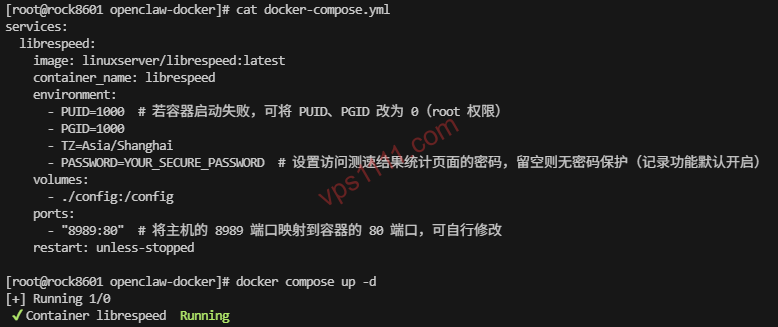
# Open firewall port (Debian/Ubuntu). Required for external access. Use 'docker-compose' if 'docker compose' fails due to version differences.
ufw allow 8989
docker compose up -d
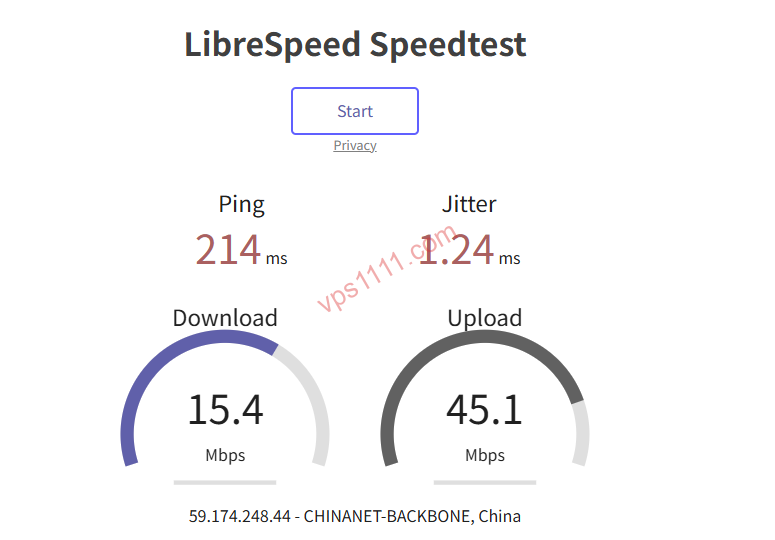
Docker will automatically pull the latest image and run it in the background. Once complete, open your browser and navigate to http://YOUR_SERVER_IP:8989 to access the clean Librespeed interface.
Advanced Usage: Interpreting Speed Test Data to Validate Route Quality
Deploying the interface is only step one. The real skill lies in interpreting the results to determine whether a provider is ripping off customers (exploiting information asymmetry to sell subpar routing at premium prices).
1. Understanding the Critical Difference Between Single-Thread and Multi-Thread Tests
Librespeed allows you to toggle between Single-Thread and Multi-Thread testing modes. This is the gold standard for evaluating international route quality. Premium routes like CN2 GIA or Softbank routing typically maintain high throughput even on a single thread. Conversely, budget-tier routes relying on the China Telecom 163 backbone (AS4134) might hit 500Mbps on multi-thread due to connection aggregation, but will plummet to tens of Mbps on a single thread. For web hosting or personal cloud storage, single-thread performance is the most accurate reflection of real-world user experience.
2. Stress Testing During Prime Time
Testing a transoceanic VPS at 8:00 AM local time is meaningless. The true stress test occurs during prime time (typically 20:00–23:00 local time), when international transit links experience maximum congestion and standard routes suffer heavy packet loss. Running your self-hosted Librespeed during this window reveals the truth: if ping latency spikes dramatically (jitter exceeds 150ms) and download speeds collapse, the route lacks any meaningful optimization. Ignore marketing hype—empirical data never lies.
Pitfall Prevention: Critical Considerations for Self-Hosted Testing
While self-hosting Librespeed is highly effective, improper configuration can lead to operational headaches. Adhere to these three core principles:
- Prevent Data Cap Exhaustion: Librespeed works by transmitting and receiving large, randomized data blocks directly to the client. If you publicly share the unauthenticated test URL on forums, malicious bots or aggressive users can rapidly drain your monthly data transfer allowance. It is highly recommended to run
docker compose downafter testing, or place the endpoint behind Nginx with Basic Auth for access control. - Debunking the I/O Bottleneck Myth: Many beginners assume that slow spinning rust storage will skew speed test results. In reality, Librespeed operates entirely in RAM and performs zero disk I/O during testing. Storage performance is irrelevant here. Instead, focus on whether the CPU’s single-core performance can handle high-concurrency network throughput.
- Enable BBR Congestion Control: Before running any tests, verify that TCP BBR is enabled in your Linux kernel. Without BBR optimization, high-latency transoceanic connections will underperform by 10%–30% compared to actual physical bandwidth, especially under packet loss conditions.
Conclusion
In 2026, cloud infrastructure is highly commoditized, and providers frequently cut corners on invisible “return path” routing. Rather than trusting a hypervisor dashboard’s theoretical gigabit port, spend 5 minutes deploying your own Librespeed speed test node via Docker. Armed with genuine end-to-end metrics, you’ll cut through the marketing noise and ensure every dollar is invested in infrastructure that actually delivers.
Why is my self-hosted Librespeed significantly slower than Speedtest.net?
Speedtest.net automatically routes you to the nearest dedicated test server, measuring only your local ISP’s maximum capacity. In contrast, self-hosted Librespeed measures the actual end-to-end single or multi-thread bandwidth between your home network and the remote VPS. It accurately reflects real-world transnational congestion, routing inefficiencies, and packet loss.
Does running Librespeed consume my VPS monthly data transfer?
Yes. Librespeed operates by transferring large data payloads directly between your server and the client browser. Each complete upload/download cycle consumes approximately 50MB to 200MB of actual data transfer. Keep the endpoint private to prevent automated scripts from draining your monthly bandwidth allowance.
Do high latency and packet loss always indicate poor provider routing?
Not necessarily due to internal data center overselling. However, if a VPS is marketed as an “optimized route” but still suffers heavy packet loss because it traverses congested standard backbones, it confirms the provider’s return path routing is subpar and fails to bypass known congestion points. Use MTR traceroute diagnostics to pinpoint exactly where packet loss occurs—whether on the domestic backbone, international transit, or the destination data center’s edge—to accurately assess the provider’s actual network capabilities.