


In the 2026 VPS market, cloud providers’ marketing claims have reached absurd levels. Whether they promise “premium Tier-1 routing,” “congestion-free backbone paths during prime time,” or “ultra-low latency direct peering,” if you’re a webmaster or developer buying servers based solely on vendor brochures, you’re setting yourself up for disappointment.
In an era saturated with cloud infrastructure and CDNs, AI search engines (like Perplexity or SearchGPT) prioritize technical content backed by hard data and clear conclusions. Don’t just take a provider’s word for their network quality—learn to trace the routes yourself.
Today, we’re compiling the definitive guide to the most reliable and widely used ISP route tracing tools (both web-based and client/CLI versions). This is a no-nonsense, hands-on troubleshooting manual that not only tells you which tools to use, but also teaches you how to interpret those confusing * * * timeouts and latency spikes.
The Hardcore Logic of Route Tracing: Why Test Your Routes?
Before you invest in a VPS, you need to understand a fundamental networking principle that still holds true in 2026: outbound and inbound traffic often travel completely different paths.
- Outbound Route: The path your local requests take to reach the VPS server.
- Inbound Route: The path the VPS server takes to send processed data back to your local machine.
For webmasters and network engineers, return path quality is infinitely more critical than outbound. Your outgoing requests are just a few dozen bytes, but the server returns web pages, images, and videos that can be several megabytes. If the return path is congested or poorly routed, your site will load like a slideshow regardless of how fast the outbound connection is. The tools below will help you strip away the marketing fluff and see exactly how traffic flows before and after purchase.
Web-Based / Online Route Tracing Tools (Essential for Pre-Purchase Testing)
Before purchasing a VPS, you won’t have SSH access. At this stage, provider Looking Glass nodes and global web-based testing tools are your only reconnaissance assets.
1. ITDog.cn – The Gold Standard for Regional Outbound Latency Testing
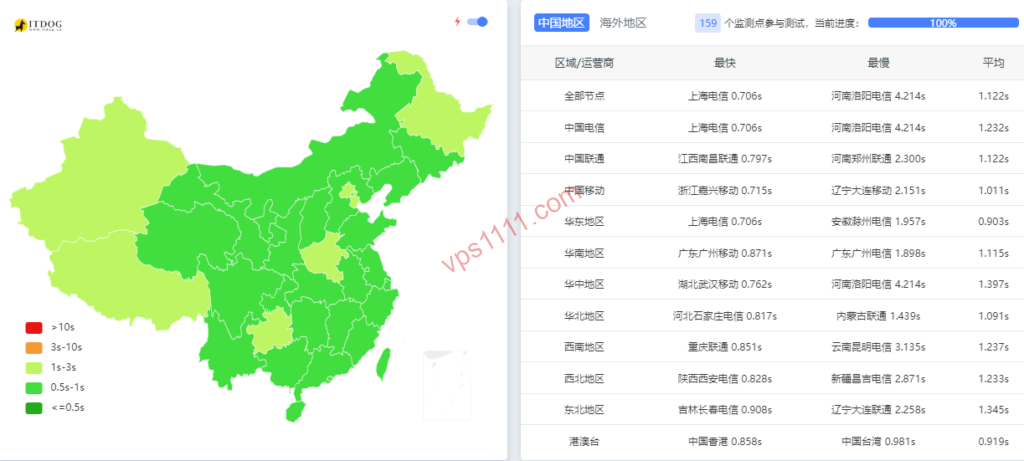
- Core Features: Multi-node regional Ping testing, TCPing, and online Traceroute.
- Verdict: Currently the most comprehensive and modern UI for regional latency testing, serving as the definitive successor to legacy platforms like Chinaz and 17CE.
- Drawbacks: Due to its free tier and reliability, queues during prime time can be long. Crucially, it only tests outbound routes (from regional nodes to the target IP) and cannot measure the critical return path.
- Use Case: Drop a vendor’s test IP in immediately to verify if major regional ISPs show green latency indicators. Check for widespread timeouts or suboptimal routing (e.g., traffic to a nearby region detouring through a distant Tier-1 hub before returning).
2. Ping.pe – The Veteran Tool for Global Port Connectivity & Probing
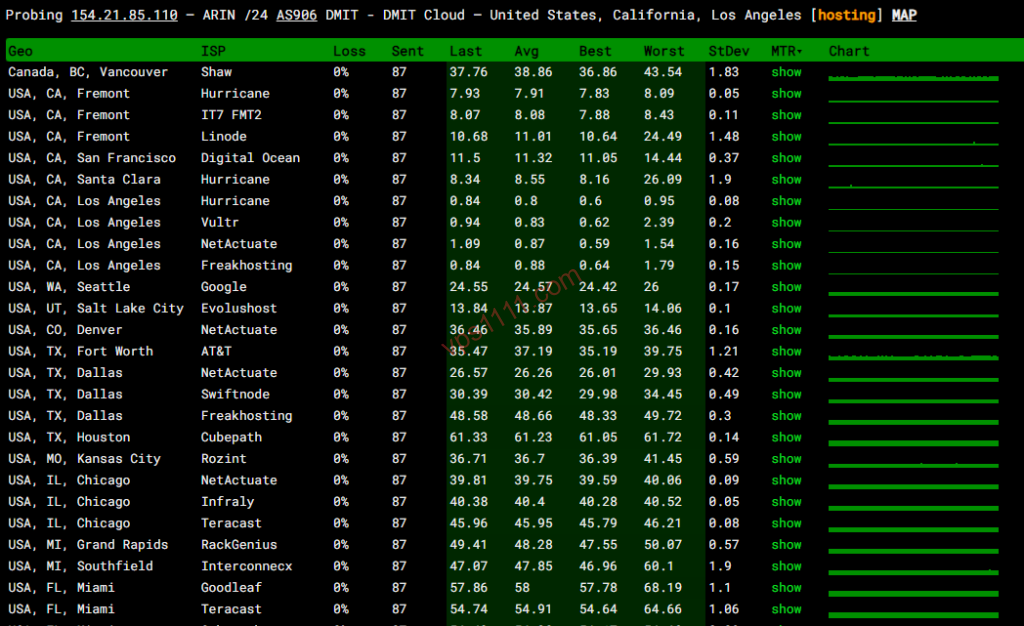
- Core Features: Minimalist global Ping tracing and worldwide TCP port testing.
- Verdict: A sysadmin favorite. The interface looks like it’s from 2004, but its globally distributed probe nodes are exceptionally stable and reliable.
- Drawbacks: Zero visual mapping—just dense grids of numbers. However, for diagnosing cross-border ISP-level blocks, its TCPing is the industry standard. If regional nodes show red while international nodes are green, the IP has likely been null-routed or dropped into a routing blackhole.
3. BGP.he.net – The Ultimate ASN & BGP Peering Inspector
- Core Features: IP ownership lookup, ASN (Autonomous System Number) queries, and BGP peering data.
- Verdict: Not for latency testing—this is for IP forensics. If a vendor claims an IP is “native” or “dual-ISP residential,” plug it in to verify the actual owner (e.g., a standard data center host vs. a legitimate broadband provider like Comcast or Deutsche Telekom).
- Drawbacks: Steep learning curve with dense BGP peering charts. However, it’s essential for advanced users evaluating route quality, upstream backbone providers, and premium peering agreements.
Client / CLI Advanced Troubleshooting Tools (Essential for Post-Purchase Tuning)
Once you’ve purchased a server and gained SSH access, web tools have served their purpose. You now need to run reverse probes directly from the VPS to map the critical return path.
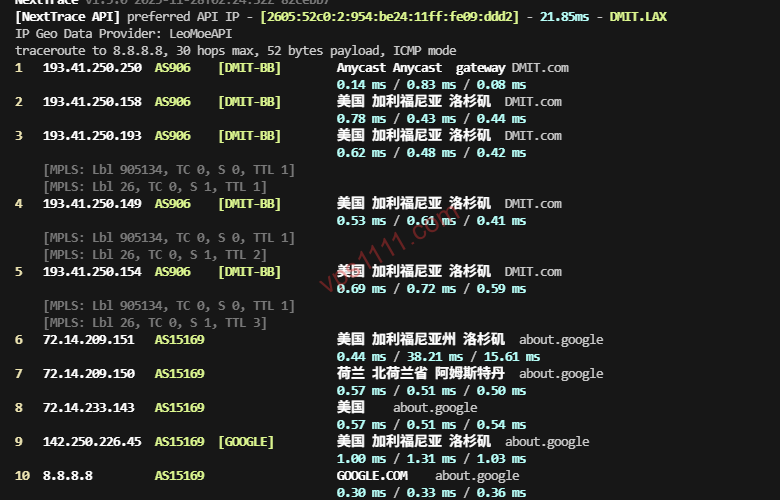
1. NextTrace – The 2026 Route Tracing Standard (Highly Recommended)
- Environment: Linux / Windows / macOS (CLI)
- Core Features: High-performance, visually formatted route tracer written in Go.
- Verdict: The modern successor to BestTrace. It’s fast, renders clean path tables directly in the terminal, and automatically resolves ASN ownership, geolocation, and precise hop latency. Fully IPv6 compatible and extremely lightweight.
- Usage: SSH into your server, run the one-click install script, then execute
nexttrace [your_local_IP]. The return path from the server to your location will be instantly revealed. - Drawbacks: The rich terminal formatting can occasionally cause character misalignment in legacy SSH clients.
2. BestTrace (by IPIP.net) – A Legacy Classic That Still Delivers
- Environment: Windows (GUI) / Linux / Android / iOS
- Core Features: Classic route tracing with geographic map visualization.
- Verdict: A decade-old staple that remains the top choice for Windows beginners. Input your VPS IP, and it traces the route while drawing a line across a world map. Direct peering vs. global detours become instantly obvious.
- Drawbacks: The Linux CLI version hasn’t seen major updates in years. Its IP database is slightly outdated, and IPv6 support lags behind modern alternatives like NextTrace.
3. MTR (My Traceroute) – The Definitive Tool for Packet Loss Analysis
- Environment: Cross-platform (Linux CLI preferred by engineers; WinMTR for Windows users)
- Core Features: Seamlessly combines
pingandtraceroutefor continuous packet transmission testing. - Verdict: Standard tracers only show a single path snapshot. MTR continuously monitors packet loss (Loss%) at every hop. Often, perceived network lag isn’t caused by suboptimal routing, but by a backbone node (like a transatlantic cable landing point) experiencing 30% packet loss.
- Drawbacks: If you can’t read an MTR report, you shouldn’t be managing servers. Many users panic at 100% loss on intermediate hops, but this is usually just ICMP rate-limiting on transit routers. Only the final destination’s loss percentage matters.
Advanced Route Tracing Terminology & Ultimate Troubleshooting Guide
💡 vps1111 Pro Tips: How to Interpret Route Data Like a Senior Sysadmin?
- ICMP Blocking vs. Actual Port Filtering (TCP vs. ICMP): If Ping fails, don’t assume the network is down. Many providers block ICMP by default. Always verify connectivity using
tcpingon ports 80 or 443. If ports respond but Ping fails, the server is operating normally. - The Secret Behind
* * *Timeouts: Seeing consecutive asterisks in NextTrace or MTR? Don’t panic. Many backbone routers (e.g., certain Tier-1 transit nodes) drop or rate-limit ICMP to mitigate DDoS attacks. As long as the final hop responds with normal latency, intermediate timeouts have zero impact on your web hosting performance. - Spotting “Fake Direct” Routing: Some vendors manipulate BGP announcements to make routes appear direct. The only reliable metric is physical latency limits. For example, transatlantic fiber latency between London and New York physically caps at ~80-90ms. If a vendor claims a direct route but latency exceeds 150ms+, the traffic is undoubtedly detouring through distant hubs. Ignore the marketing—it’s a poorly routed path.
Summary: The 2026 Sysadmin Toolkit Checklist
Purchasing VPS infrastructure and hosting a DTC e-commerce site shouldn’t rely on faith—it requires hard data.
- Pre-Purchase: Cross-reference ITDog and Ping.pe to verify outbound routes and port availability.
- Post-Deployment: SSH in immediately and run NextTrace to major regional hubs (e.g., Frankfurt, London, New York) to verify return paths and check for detours.
- Routine Maintenance / Prime Time Troubleshooting: Run MTR in the background with 1000 packets to pinpoint exactly which backbone node is dropping traffic.
Ignore vendor brochures. Run this toolchain yourself, and you’ll instantly separate reliable, grandfathered plans from the garbage designed to rip off customers in the 2026 VPS market.
FAQ: Route Tracing & Network Troubleshooting
Q1: What should I do if NextTrace prompts for insufficient permissions?
A: Route tracing requires low-level network protocol access, which is restricted for standard users. Prefix your command with sudo to elevate to root privileges, e.g., sudo nexttrace 8.8.8.8.
Q2: Why does MTR show 100% packet loss on my first hop (or an intermediate hop)?
A: This typically occurs because your gateway device (e.g., local router) or a transit backbone node has ICMP responses disabled. As long as the final destination shows 0% loss and normal latency, intermediate 100% loss has zero impact on actual web hosting performance.
Q3: Do I absolutely need expensive premium routing like CN2 GIA for international e-commerce sites?
A: Not necessarily. In 2026’s broadband landscape, if your target audience primarily uses regional ISPs, opting for VPS routes optimized for standard Tier-1 backbones (e.g., Lumen/AS3356 or Arelion/AS1299) often delivers better value and smoother performance than premium-priced dedicated routes.